On this page
Understanding Ghost Text
When you open a conversation where the customer has sent a message, SupportBuddy automatically generates a suggested response. This appears as teal-colored "ghost text" in the composer.
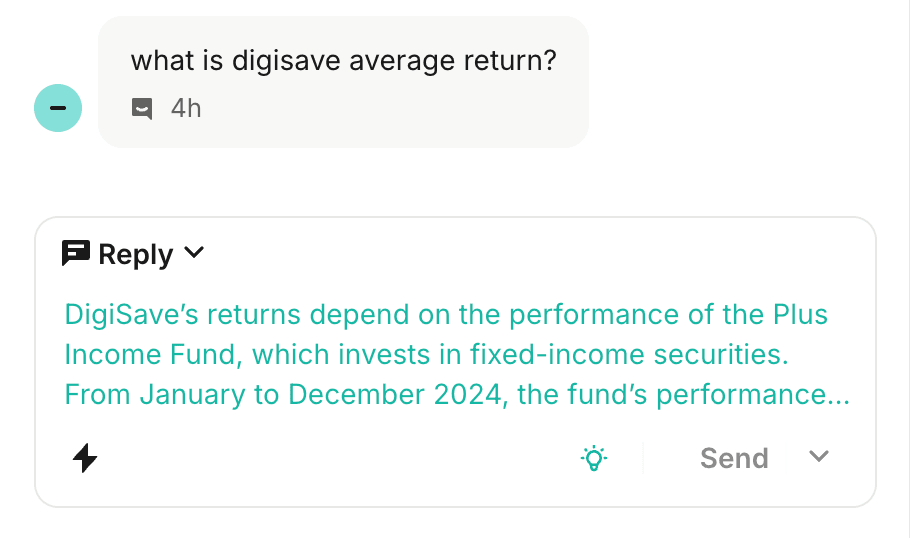
Ghost text suggestion
Keyboard Shortcuts
| Key | Action |
|---|---|
| Tab | Accept the suggestion and insert it into the composer |
| Start typing | Dismiss the suggestion and write your own response |
Button Controls
Hover over the SupportBuddy button in the Intercom toolbar to reveal additional controls:
Main Button (SupportBuddy Icon)
Click to insert the suggestion into the composer. The suggestion is ready to send or edit.
Waiting for Customer (Hourglass)
The agent sent the last message. SupportBuddy is waiting for the customer to respond. Click to manually request a suggestion anyway.
Refresh
Get a new suggestion. Useful if the customer added more information or the current suggestion doesn't fit.
Pause / Resume
Temporarily stop showing suggestions. Click again to resume. Your preference persists across page reloads.
Autonomous Mode
Toggle auto-send for high-confidence suggestions. Only visible if enabled by your administrator.
Pausing SupportBuddy
Click the pause button to temporarily stop receiving suggestions. This is useful when:
- Handling a complex issue that requires your full attention
- The conversation topic isn't suited for AI suggestions
- Training or onboarding where you want to practice without AI help
- Dealing with sensitive customer situations
When paused:
- The button shows a paused state
- No suggestions are generated for any conversation
- Click again to resume - your preference persists across page reloads
Manual Suggestions
When you see the hourglass icon, SupportBuddy is waiting for the customer to respond. You can click the button to manually request a suggestion anyway. This is useful when:
- You want to draft a follow-up message before the customer replies
- The customer is taking a while to respond and you want to be proactive
- You need help crafting a message to move the conversation forward
Refreshing Suggestions
When you already have a suggestion (lightbulb is teal), click the refresh button to get a different one. This is helpful when:
- The current suggestion doesn't quite fit the situation
- You want a different tone or approach
Each refresh generates a fresh suggestion based on the current conversation state, including any new messages since the last suggestion.
Understanding Confidence Scores
SupportBuddy provides a confidence score indicating how certain it is about the suggestion quality. Hover over the button to see the percentage in the tooltip.
| Score | Meaning | Recommendation |
|---|---|---|
| 90-100% | Very confident | Safe to send as-is |
| 70-89% | Good | Quick review, usually fine |
| 50-69% | Moderate | Read carefully, may need edits |
| Below 50% | Low | Significant review needed |
Using Autonomous Mode
If your administrator has enabled autonomous mode, you can toggle it to automatically send high-confidence responses:
When autonomous mode is ON:
- High confidence: Response is automatically sent
- Low confidence: You hear a notification sound and see ghost text to review
You can toggle autonomous mode on/off at any time by clicking the robot icon. Your preference is saved.
When to Pause Suggestions
Consider pausing SupportBuddy when:
- Handling sensitive or complex issues that require careful manual response
- Working on a conversation where the AI suggestions aren't relevant
- Taking a break and want to focus without distractions
- Training or being observed and want to demonstrate manual skills
Troubleshooting
Suggestions not appearing?
- Check if you're paused (look for the pause icon)
- Wait for the customer to send a message
- Click into the composer to make sure it's focused
- Check the extension popup for connection errors
Ghost text not showing in composer?
- The composer must be empty for ghost text to appear
- Try refreshing the page
- Clear any text in the composer first
Suggestions seem wrong or irrelevant?
- Click refresh to get a new suggestion
- Report the issue to your administrator
- The knowledge base may need updating