On this page
1. Add a trigger
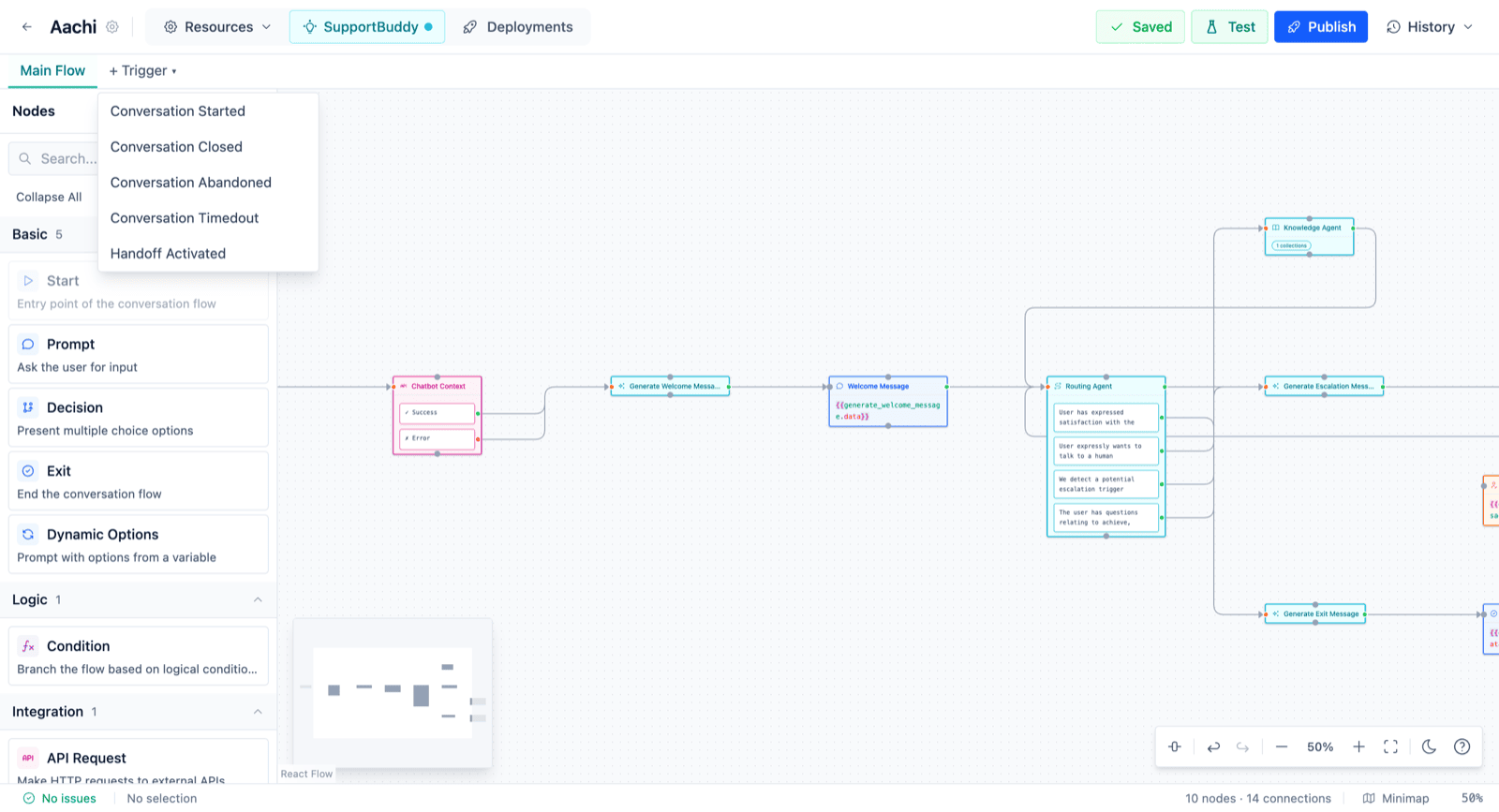
Open your flow in the editor. Along the tab bar, next to Main Flow, click + Trigger and pick the lifecycle event you want to react to. Each event can have one trigger per flow, so events you've already used won't appear in the list.
2. Build the graph
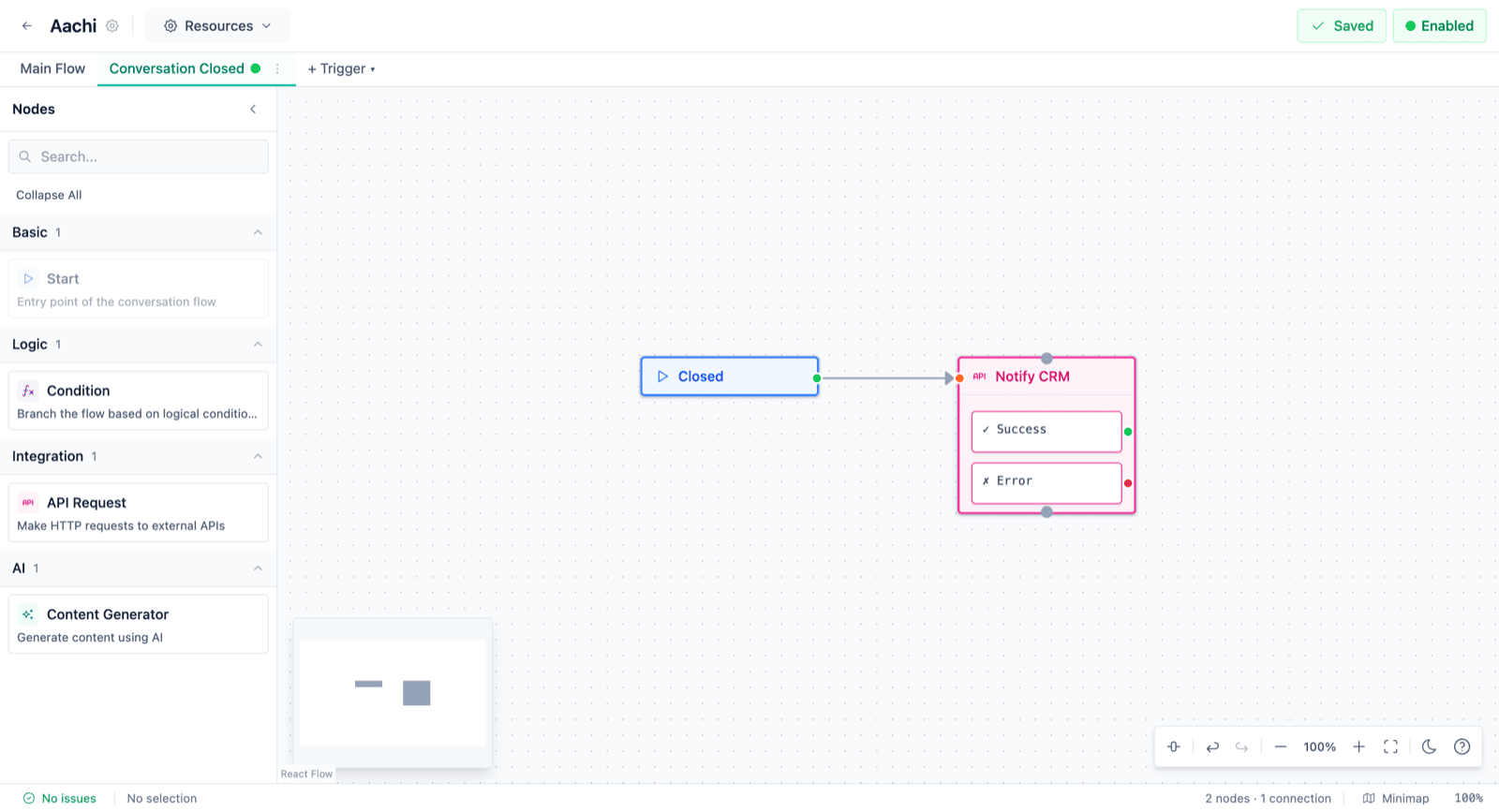
The new trigger opens on its own tab with an empty canvas and a restricted palette: only the trigger-safe nodes (Start, Condition, Assign Support, API Request, Content Generator, Intent Recognition, RAG Retriever, Agentic RAG Retriever). Drag a Start node on as the entry point, then drag the node that does the work and connect them. Here we wire Start → API Request to notify an external CRM.
3. Configure the nodes
Click a node to open its settings and fill in what it needs. For an API Request, that's the endpoint, method, and body; for a Content Generator, the prompt and output schema. Nodes that aren't fully configured are flagged with an error marker, and the editor counts the outstanding errors at the bottom of the canvas. You can save and come back to a draft as many times as you like.
An API Request node calls one of your saved endpoints. If you haven't set one up yet, see API Integration first.
Node fields accept the usual Handlebars variables. Because a trigger fires on a conversation event rather than an incoming message, use the {{@conversation.*}} namespace (id, platform_conversation_id, platform, gateway, history) and platform data like {{@intercom.bot_admin_id}}. The live {{@request.*}} context isn't available inside a trigger.
4. Enable it
A trigger does nothing while it's a draft. When the graph is ready, flip the Disabled toggle in the toolbar (or the dot on the trigger's tab) to Enabled. Enabling validates the whole graph: trigger-safe nodes, a single connected entry point, and valid configuration on every node.
If something's still wrong, enabling is refused and the editor tells you what to fix; the trigger stays disabled until it's valid. Once it flips to Enabled, you're live.
5. When it fires
From then on, every time a conversation on this flow hits the trigger's event, the graph runs in the background (your API gets called, your content gets generated) without the customer noticing. It runs against the flow version that conversation is using, and runs at most once per occurrence.
Editing later
To change a live trigger, edit it and re-save; it stays valid because an enabled trigger is re-checked on every save. If you need to make a breaking change, flip it back to Disabled first, edit freely, then enable again when it's ready. To take a trigger offline without losing it, just disable it; to remove it entirely, use the trigger tab's menu.