On this page
Who works leads
Leads are worked by your marketing agents. The owner, managers and admins can always open them too. Everyone else needs a marketing seat, and without one Leads does not show under Customers in their sidebar.
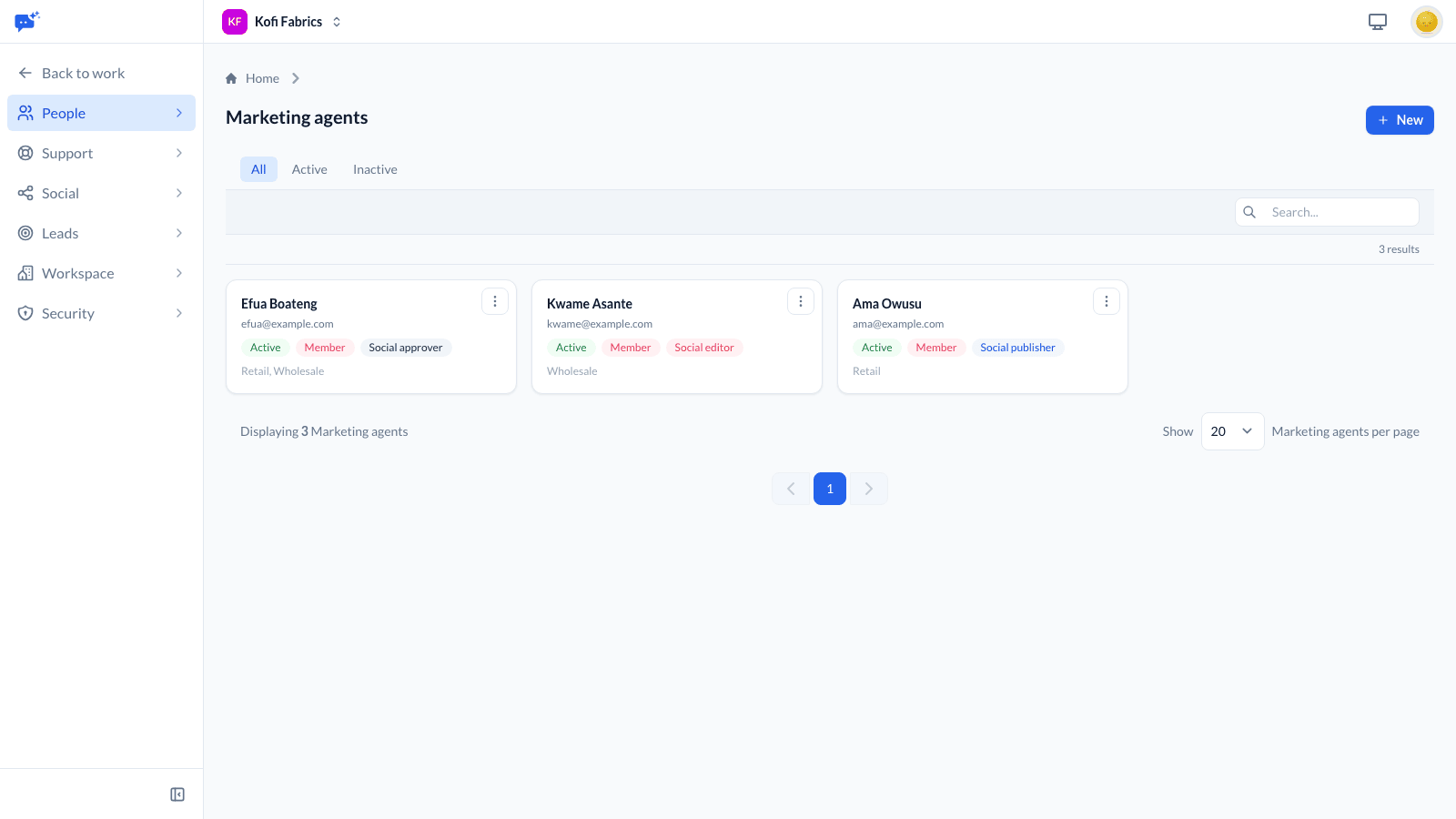
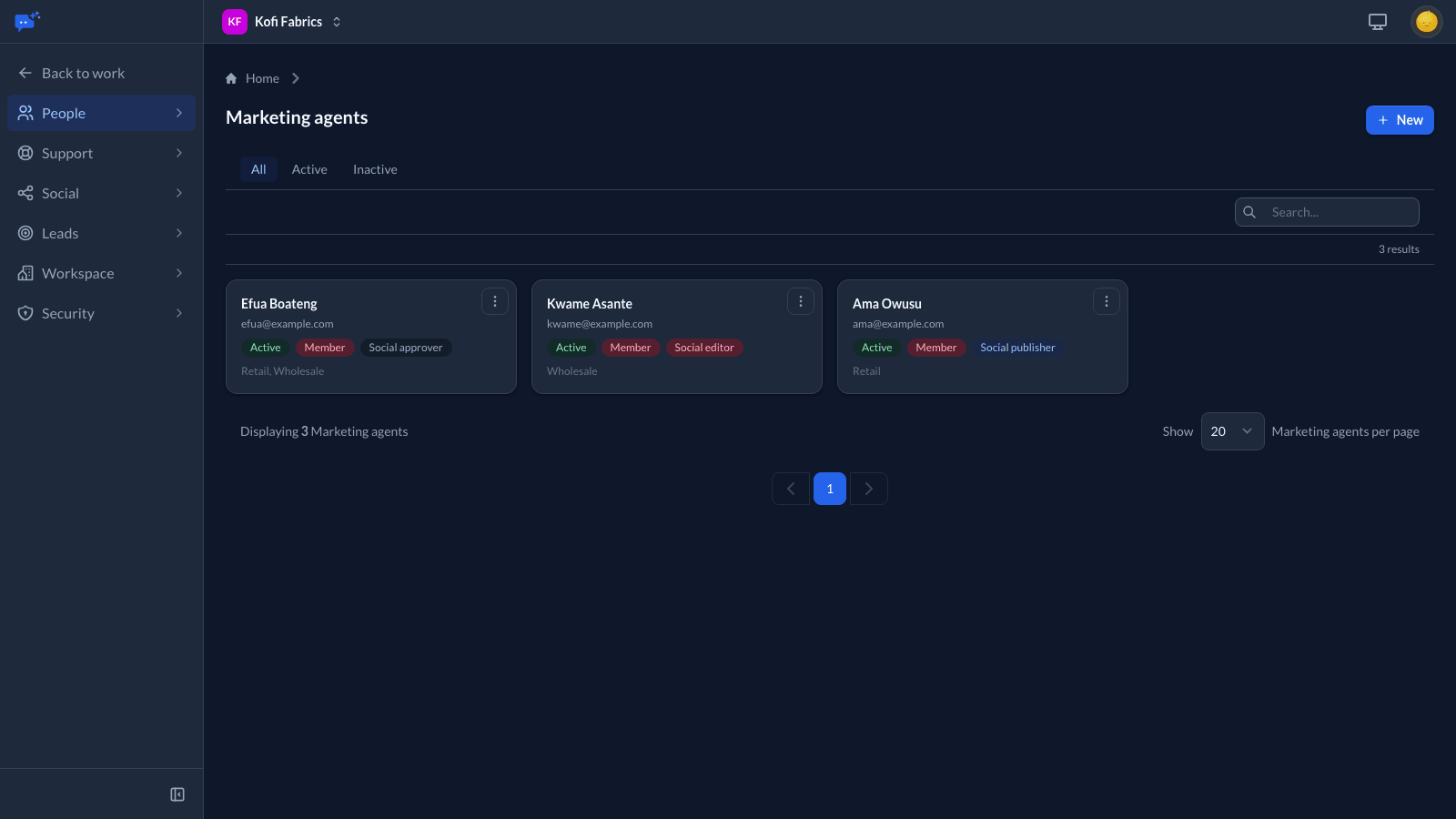
The owner and managers give seats under Settings → People → Marketing agents: choose New and pick the member. A marketing seat is an agent seat, taken from the same seats as your support agents, so someone who already answers the inbox does not need a second one. Use Disable to take a seat back. The leads that person holds stay with them until someone transfers them.
Leads come with every UniversalChatbot plan. UniversalDesk does not have them.
How leads arrive
- From a flow. The Save Lead step saves the name, email, phone and message the bot collected, along with any other details you map. A lead needs a name, an email or a phone number. The lead shows which flow and channel it came from and links to the conversation.
- By hand. Choose New on the Leads page, or + Add on the board's New column.
- From your own tools. The Agent Gateway lists, creates and updates leads and adds notes, with an access token that has the leads scopes.
When someone comes back while they still have an open lead, the bot updates that lead instead of adding a second one. It matches them by email, then by phone, then by the conversation's contact. Only the details they give again are changed, new tags are added to the old ones, and the category changes only when the step names one.
Who gets a new lead
A lead from a flow goes to a team, then to one person on it:
- Team. The team the Save Lead step names, or else the Default marketing team set on the deployment or in the flow's settings. Only teams whose Works on includes Leads, under Settings → People → Teams, can take leads.
- Person. The person the step names, or else the Default lead assignee, as long as they have a marketing seat, are on the lead's team and are not on time off.
- Otherwise, in turn. The lead goes to the team member who has gone longest without one. People who are on time off are skipped. A transfer does not change anyone's place in line.
A lead with no team and no one named stays unassigned until someone claims it.
The board
Customers → Leads in the sidebar opens a board with a column for each status: New, Contacted, Qualified, Won and Lost. Drag a card to another column to change its status. Each card shows the person, their message, who has the lead and when it arrived. Won and Lost start folded; open one with its arrow.
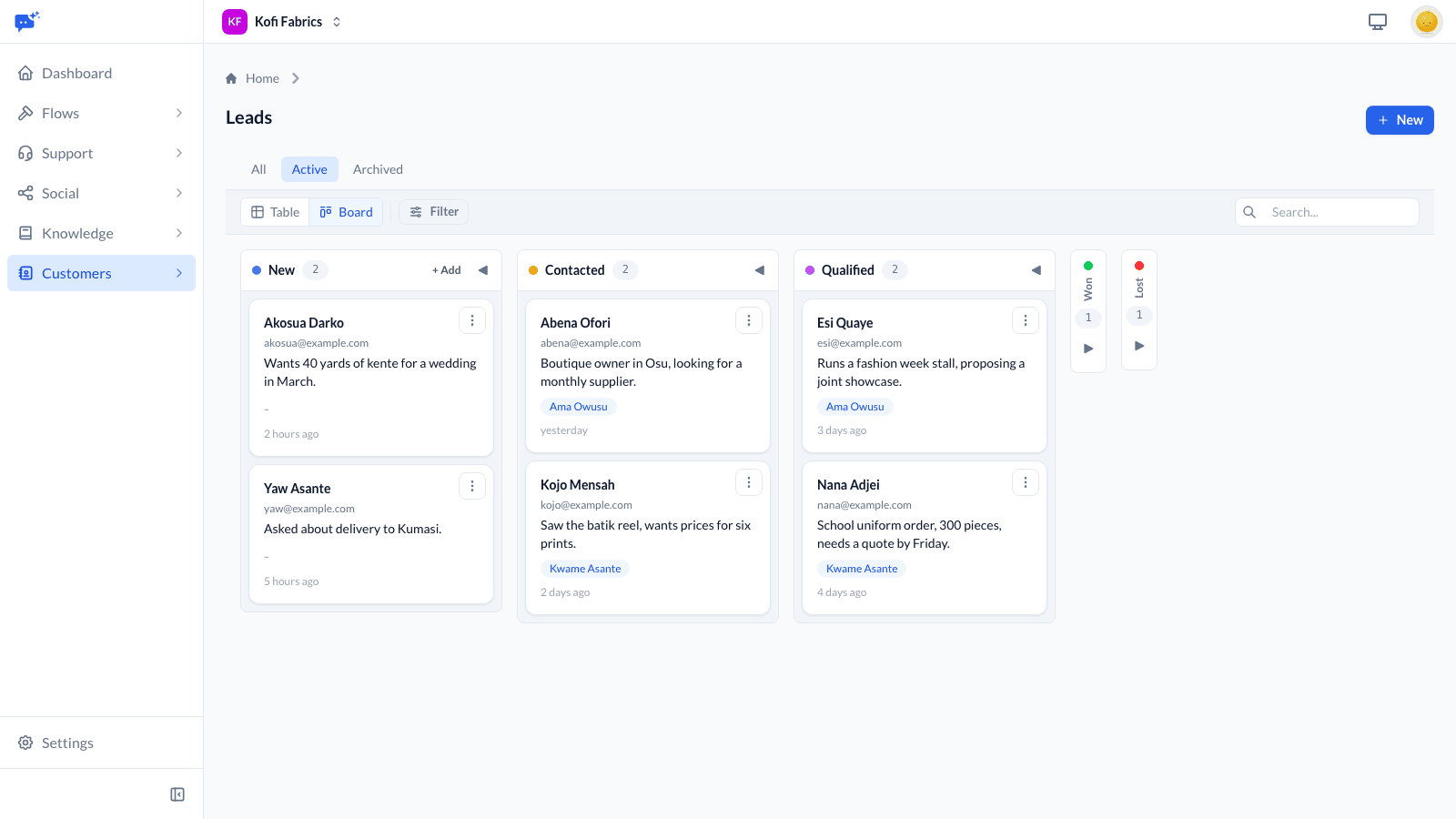
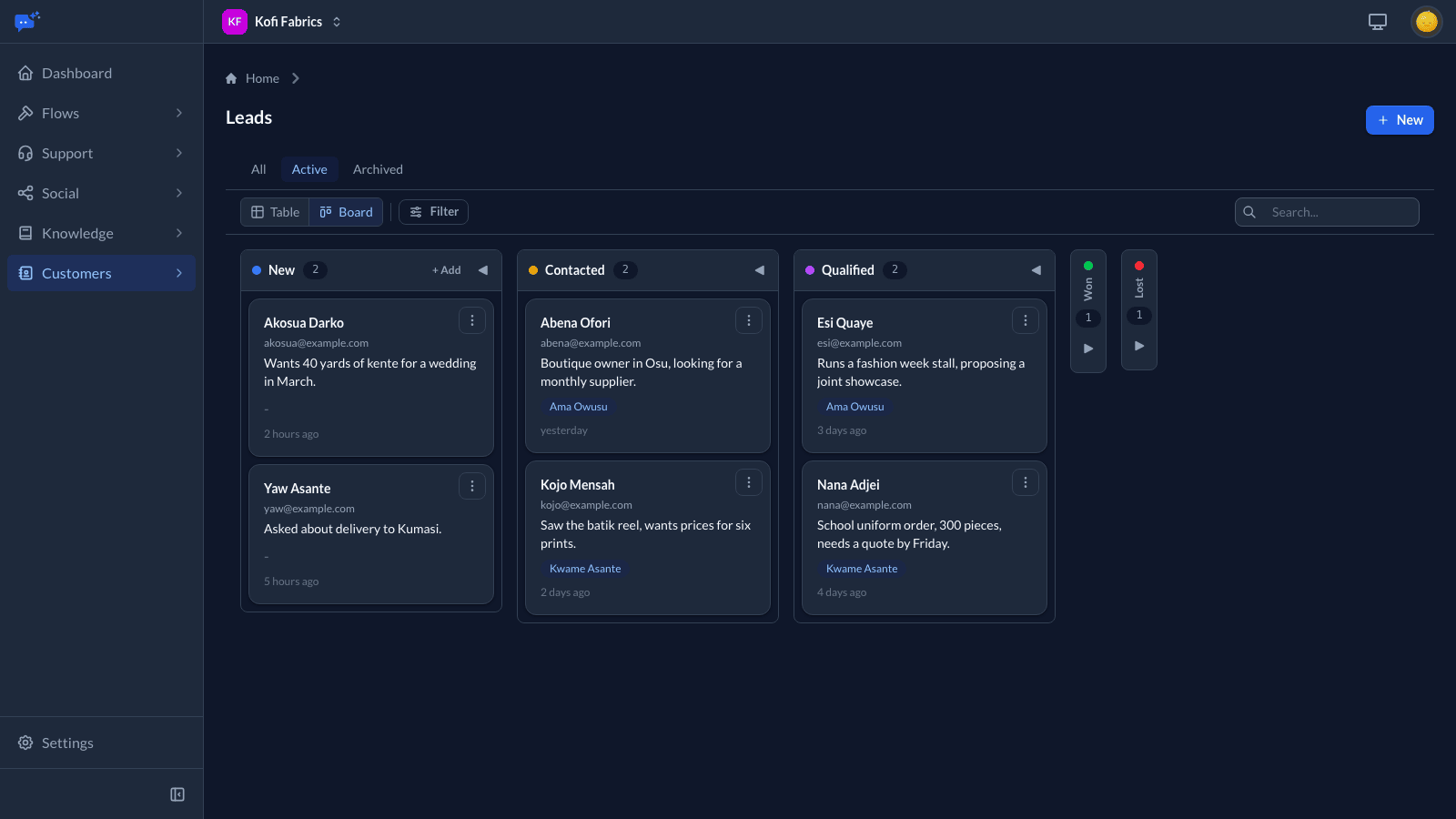
Switch to Table for a list you can sort by name or date. Both views search by name, email or phone, and Filter narrows them by status, channel, team, assignee, category or tag. In the table, Export → Export all downloads the leads as a spreadsheet.
The board opens on Active leads. Archived leads are under Archived, and All shows both.
Working a lead
Open a lead to see everything it holds, then use Edit or the Actions menu:
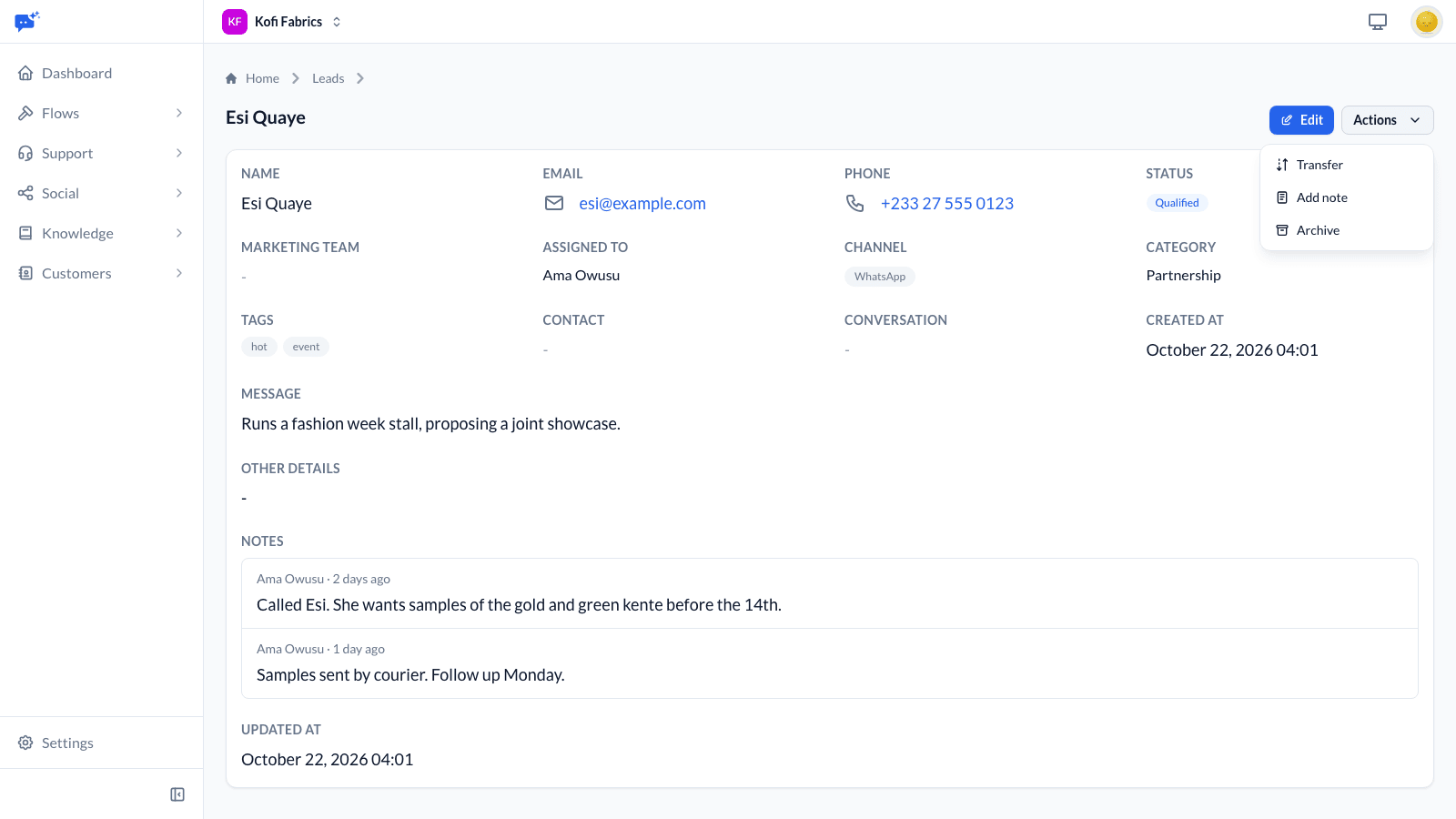
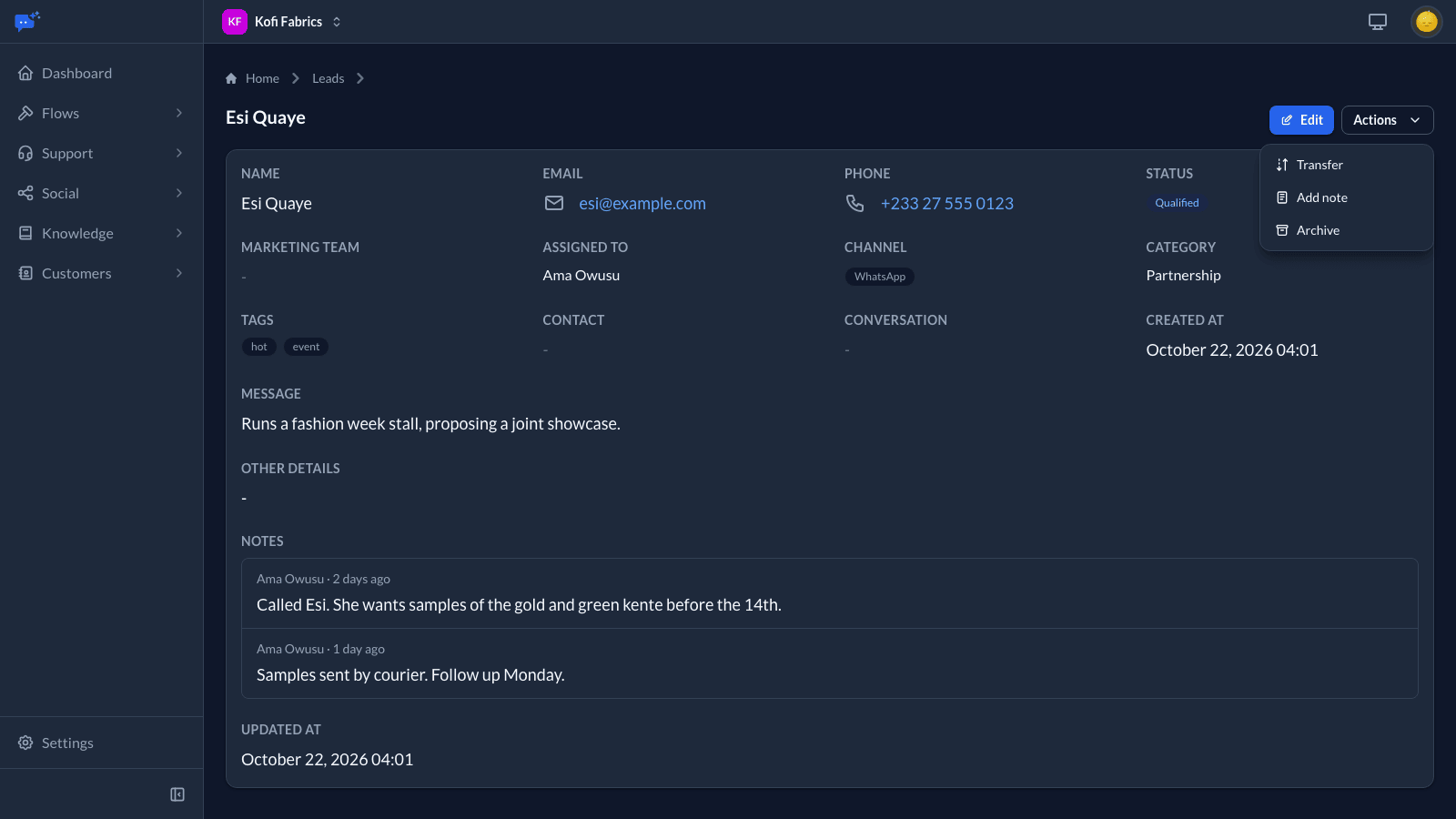
- Claim takes an unassigned lead. It is offered to people with a marketing seat.
- Transfer moves the lead to another team, another person, or both. Choose only a team and the lead stays with its current holder if they are on that team, or goes to the next person in turn if not. A person you name must be on the team you choose.
- Add note records what happened. Notes are visible to your team only, signed and dated, and cannot be edited.
- Archive takes the lead off the board without deleting it. Restore brings it back. Leads are never deleted.
Edit changes the lead's details, status, team, assignee, category and tags. Only people with a marketing seat can hold a lead.
Who is told
Leads send email, not push notifications.
- A new lead is emailed to the people chosen in Email new leads to, under Settings → Workspace → Organization: Owner, managers and admins (the default), Marketing agents, Everyone in the workspace, or Nobody. The person the lead goes to is always told.
- A lead given to you by someone else is emailed to you. Claiming a lead yourself sends nothing.
People on time off are not emailed. Anyone can turn either email off for themselves in the Marketing section of their Notifications page. The owner and managers change Email new leads to.
Storage and test runs
Each lead counts as one stored row, from the same allowance as your tables. When the allowance is full, new leads cannot be added, by hand or from a flow, where the Save Lead step takes its error exit. Leads already saved can still be updated.