On this page
Uploading
Open Social → Media library and choose Upload. Anyone with a social role can upload. The library is shared by everyone in Social, so a file uploaded once can be used in any post.
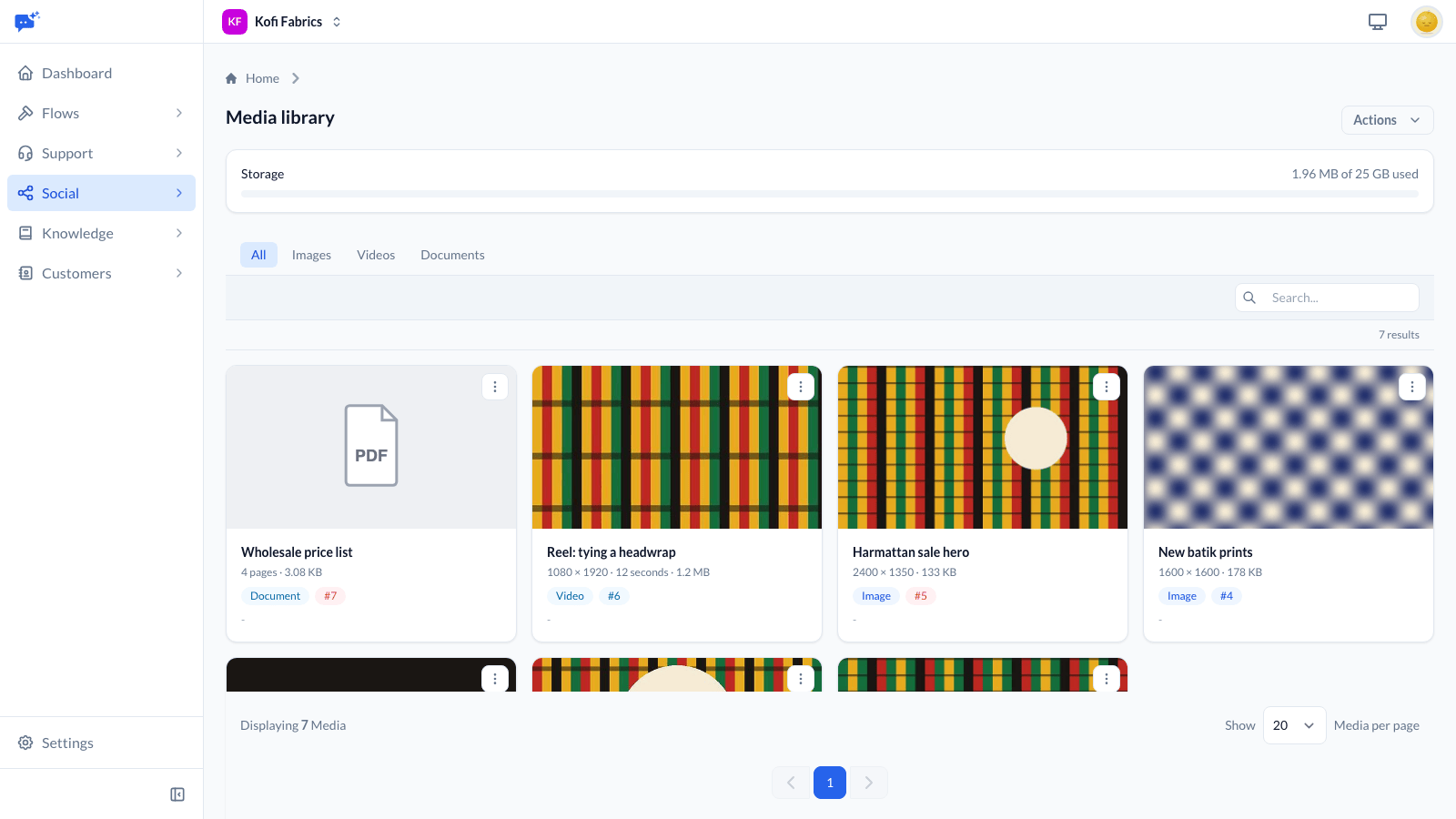
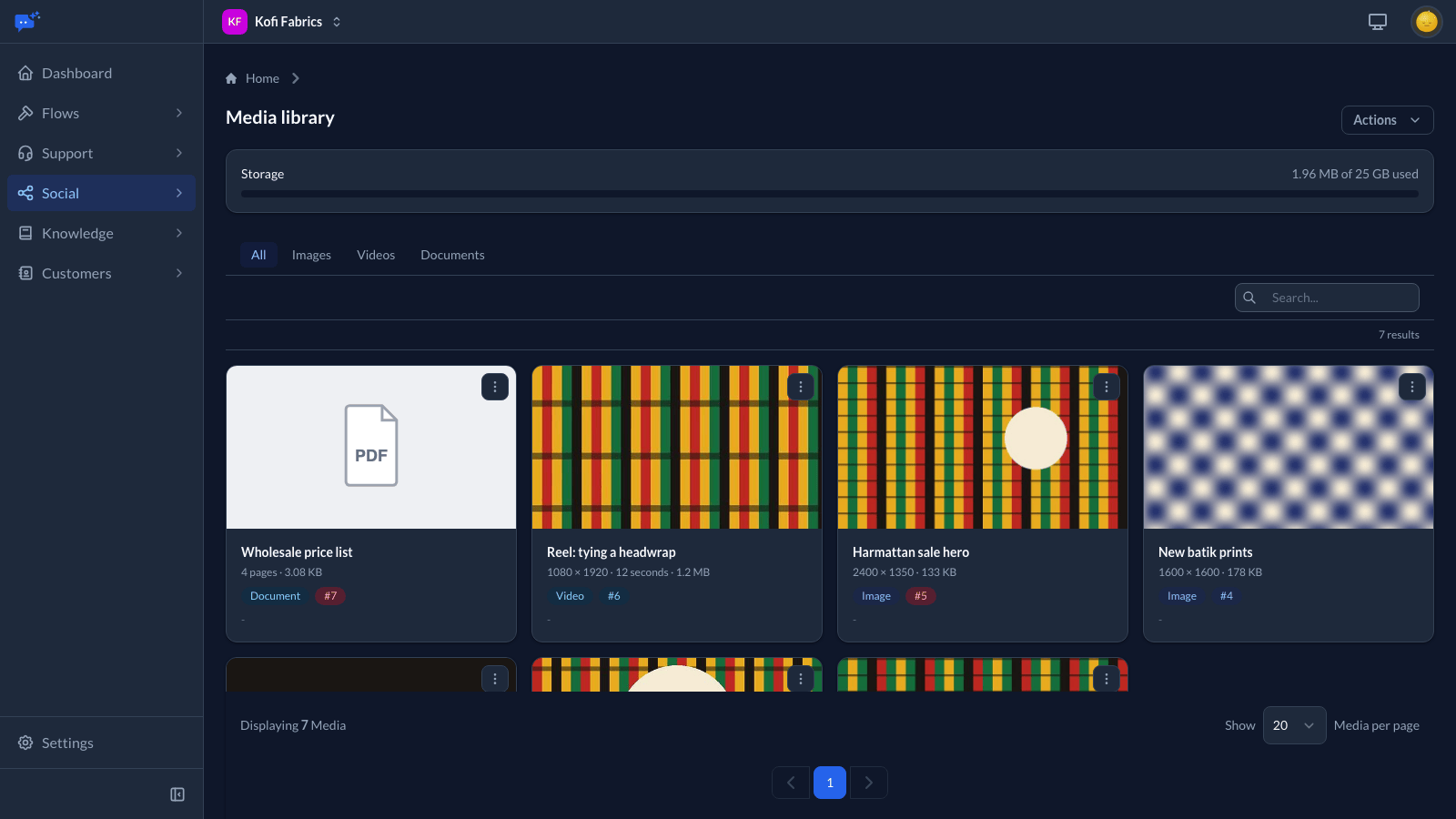
Large videos upload in parts and show their progress as they go. If your connection drops, the upload carries on from where it stopped once you are back online, as long as you keep the page open.
After an upload finishes, the file shows as Processing for a moment while it is checked and a preview is made. It then shows as ready. A file that is not what its name says, or cannot be read, shows as Failed with the reason.
Editors and above can delete a file, except while a post using it is being published.
File types and sizes
- Images: JPEG, PNG, GIF and WebP.
- Videos: MP4, MOV, WebM, AVI and MKV.
- Documents: PDF, for LinkedIn document posts.
A single file can be up to 5 GB, enough for a few minutes of 4K video for YouTube. Each platform also has its own limits, which the library checks for you (see below).
Files are kept exactly as you upload them. They are never compressed or converted, so a 4K video reaches YouTube in 4K. The only extra files made are a small preview and any crops a post needs.
Where it fits
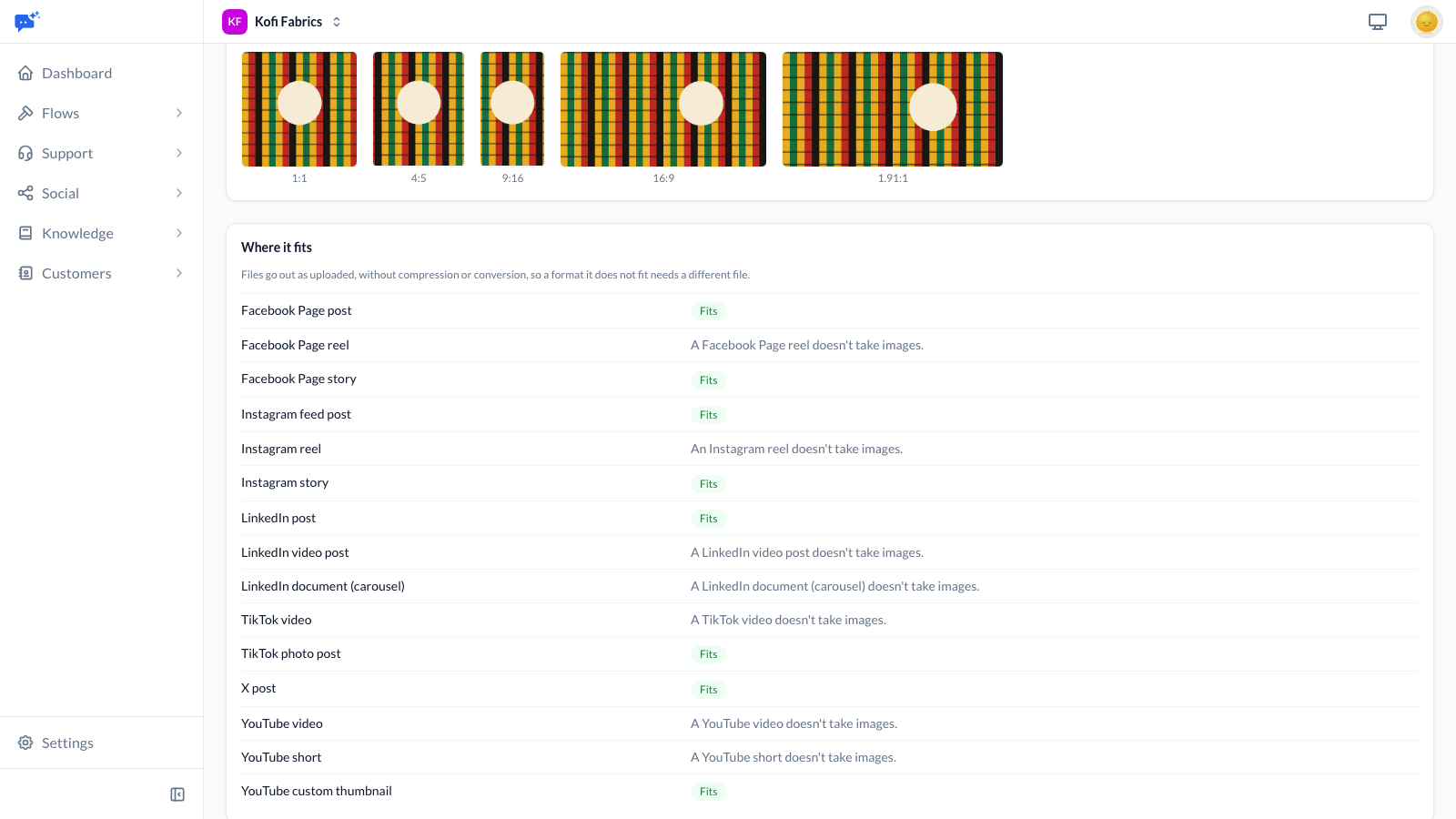
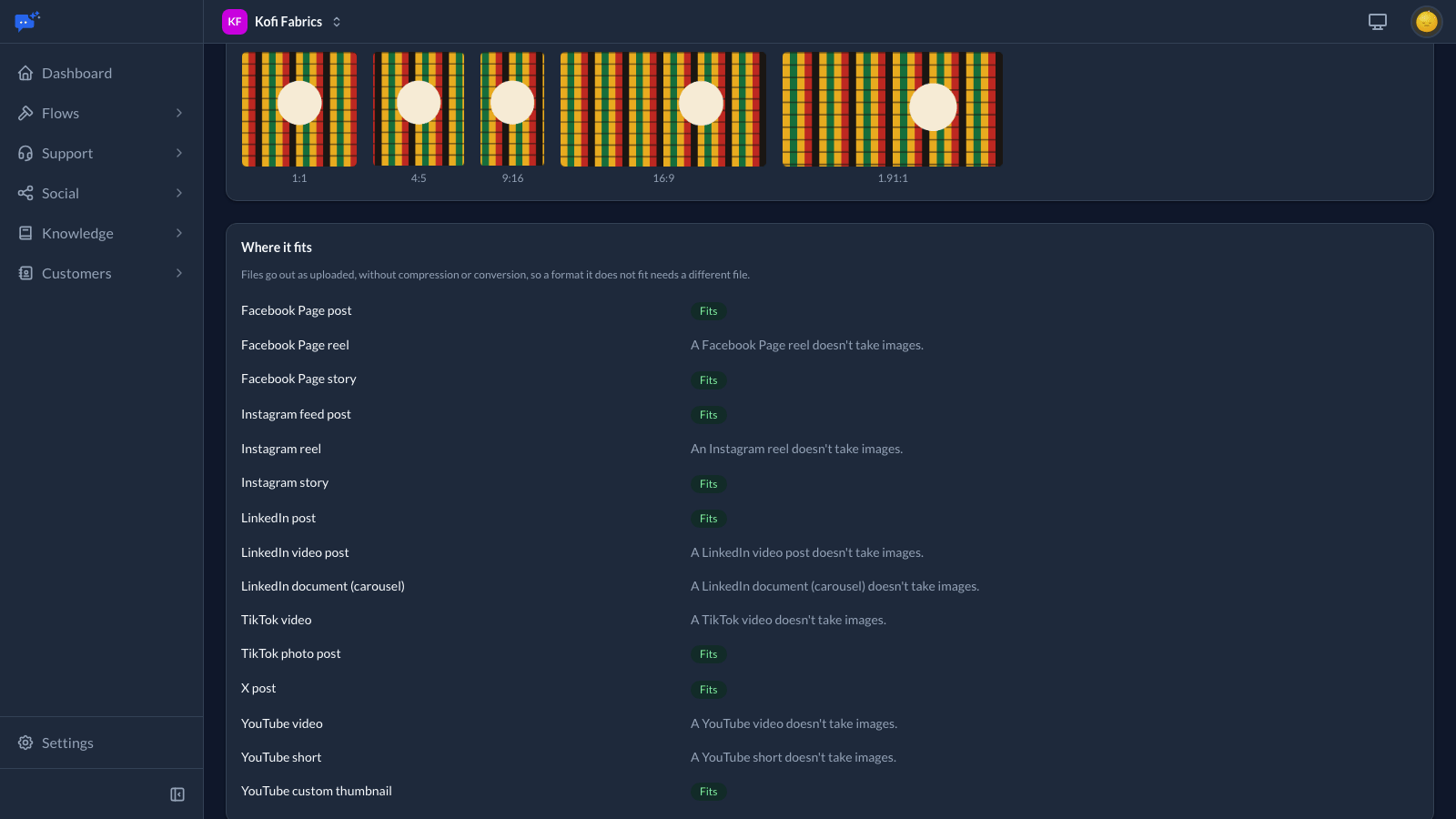
Open a file to see Where it fits: a table of every platform and format (a Facebook reel, an Instagram story, a YouTube Short and so on) each marked Fits or given the reason the file does not suit it. Reasons cover the file type, size, length, resolution and shape.
Because files go out as uploaded, a video that does not fit a format needs a different file. Images in the wrong shape are cropped automatically, as described next.
Focal point and crops
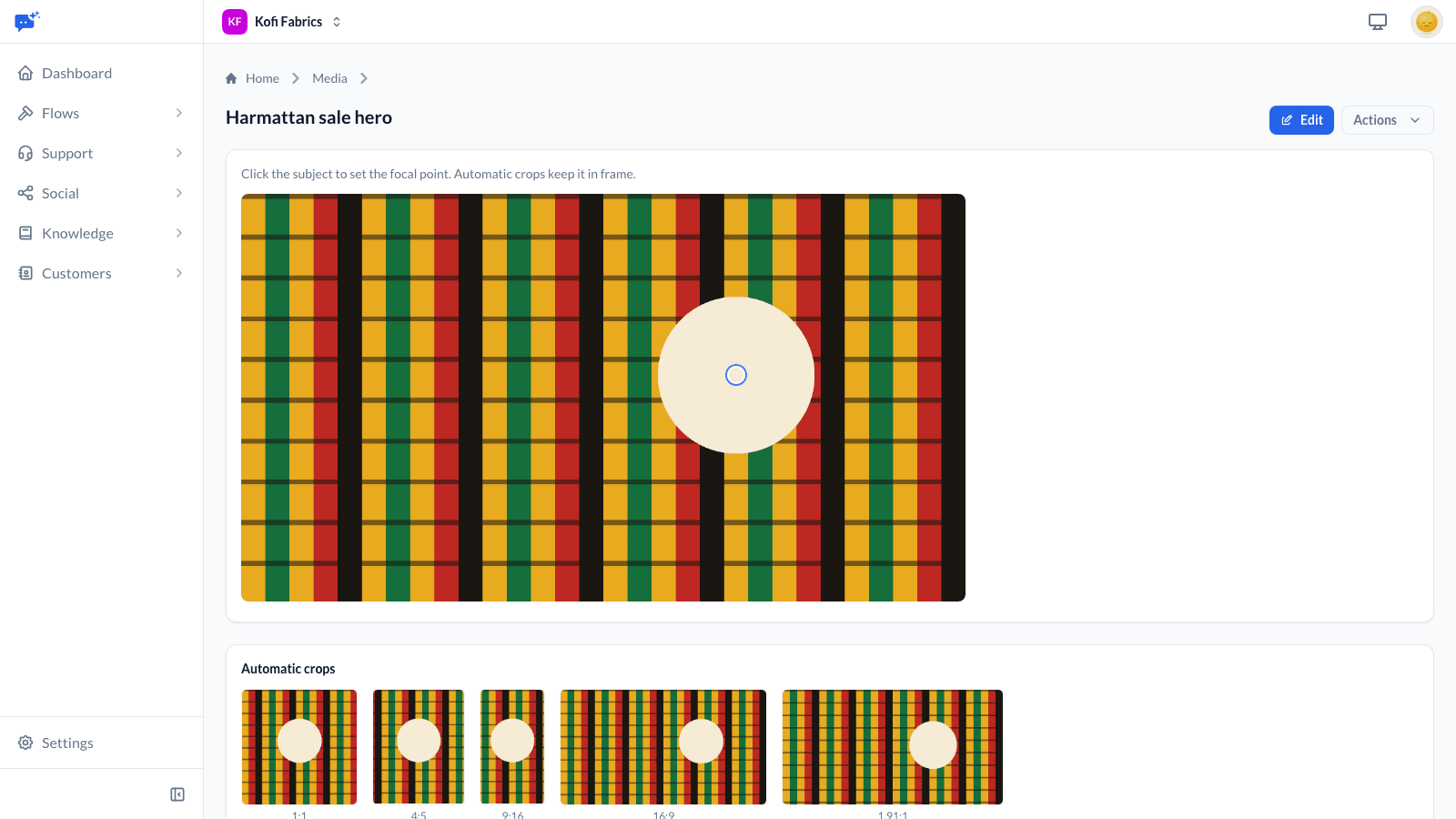
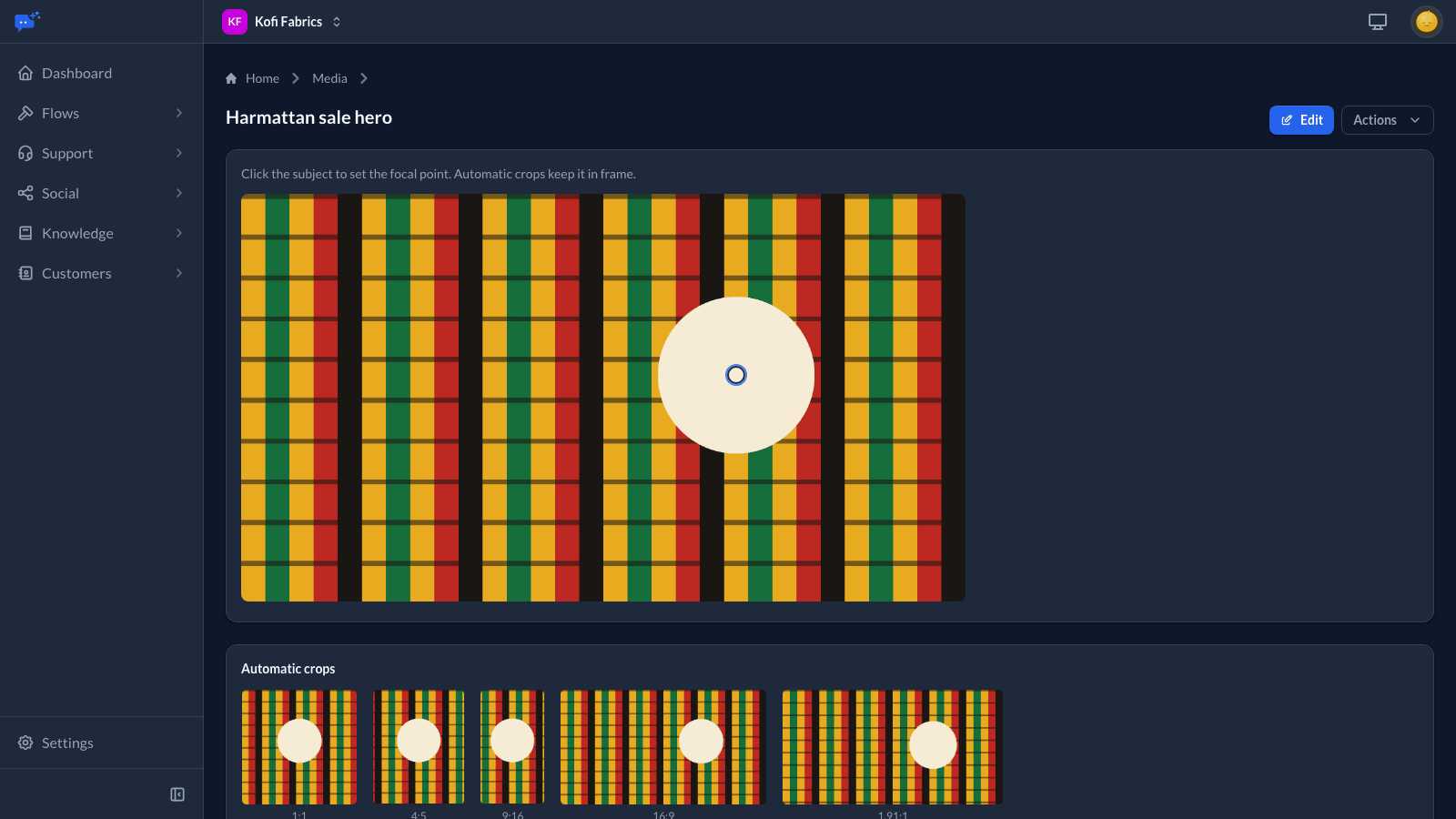
On an image, click the subject to set its focal point. When a post needs the image in a different shape, for example square for an Instagram feed post or tall for a story, the crop is taken around the focal point so the subject stays in frame.
The Automatic crops panel under the image shows how the common shapes will look. Move the focal point and the previews follow. Videos and PDFs are never cropped.
Alt text
Add alt text to describe an image for people using screen readers. It is sent with the image to the platforms that accept it.
Storage
The top of the library shows how much space your files use against your Social size's storage (Lite 10 GB, Growth 25 GB, and Scale 100 GB), counting originals, previews and crops. The bar turns red at 90%, and everyone who gets usage alerts is emailed at 90% and again when the library is full.
When the library is full, new uploads are turned away until there is room. Posts already scheduled still go out. To make room, delete files you no longer need, or have the owner add a storage pack.
The owner adds storage packs under Settings → Workspace → Usage & Billing, next to your Social size. Each pack adds space for as long as you keep it and is billed every period, like Social itself:
A pack can be removed once your files fit in the space left without it. Turning off Social removes its storage packs too; your files are kept.
Uploads that were started but never finished are cleared away after a day.