On this page
Turning Social on
Social comes in three sizes, Lite, Growth and Scale. The workspace owner adds it to the subscription by choosing a size under Settings → Workspace → Usage & Billing, in the Subscription section, and can move to another size there. It is available on every paid UniversalChatbot plan, and is removed if you move to Free. A smaller size can be chosen once your connected accounts and media library fit within it. While it is on, the Social section shows in the sidebar for the people described below.
If Social is turned off, the Social section is hidden and nothing is published or collected. Scheduled posts wait and go out once Social is back on. One that came due more than a day before then is marked failed so you can reschedule it. Connected accounts stay connected.
Each size includes:
- Lite, $39 a month: 3 accounts, 60 posts a month, 2,000 comments and mentions, and 10 GB of media.
- Growth, $99 a month: 10 accounts, 300 posts a month, 10,000 comments and mentions, 25 GB of media, approvals, listening rules, spike alerts, app reviews and X, and $10 of X usage included.
- Scale, $249 a month: 25 accounts, 1,000 posts a month, 30,000 comments and mentions, 100 GB of media, approvals, listening rules, spike alerts, app reviews and X, and $25 of X usage included.
Posts count each calendar month, and a post sent to three accounts counts as three. Comments and mentions count each billing cycle, with any beyond the allowance charged on your usage invoice (see Listening). More media storage is available as storage packs.
Approvals, listening rules, more-mentions and negative-run alerts, App Store and Google Play reviews and X come with Growth and Scale. On Lite, approval steps you set up are kept and skipped, and X and store accounts stay connected without being read or posted to.
Roles
Social is worked by your marketing agents. Owners, managers and admins can always do everything. To give someone else access, add them as a marketing agent under Settings → People → Marketing agents, then set their Social role on their card. A marketing seat is an agent seat, the same kind your support agents use, and the same seat lets them work leads. Each role includes everything the roles above it can do.
| Role | Can |
|---|---|
| Creator | Upload to the media library, write drafts and edit their own drafts, add internal notes. |
| Editor | Edit anyone's post, submit posts for approval, set up campaigns, remove files from the media library. |
| Approver | Approve posts or request changes, and create listening rules. |
| Publisher | Schedule, publish now, cancel and retry. |
Connecting accounts, starting and stopping listening, setting up approval steps and assigning accounts to teams are workspace settings, so only owners, managers and admins do them.
Connecting accounts
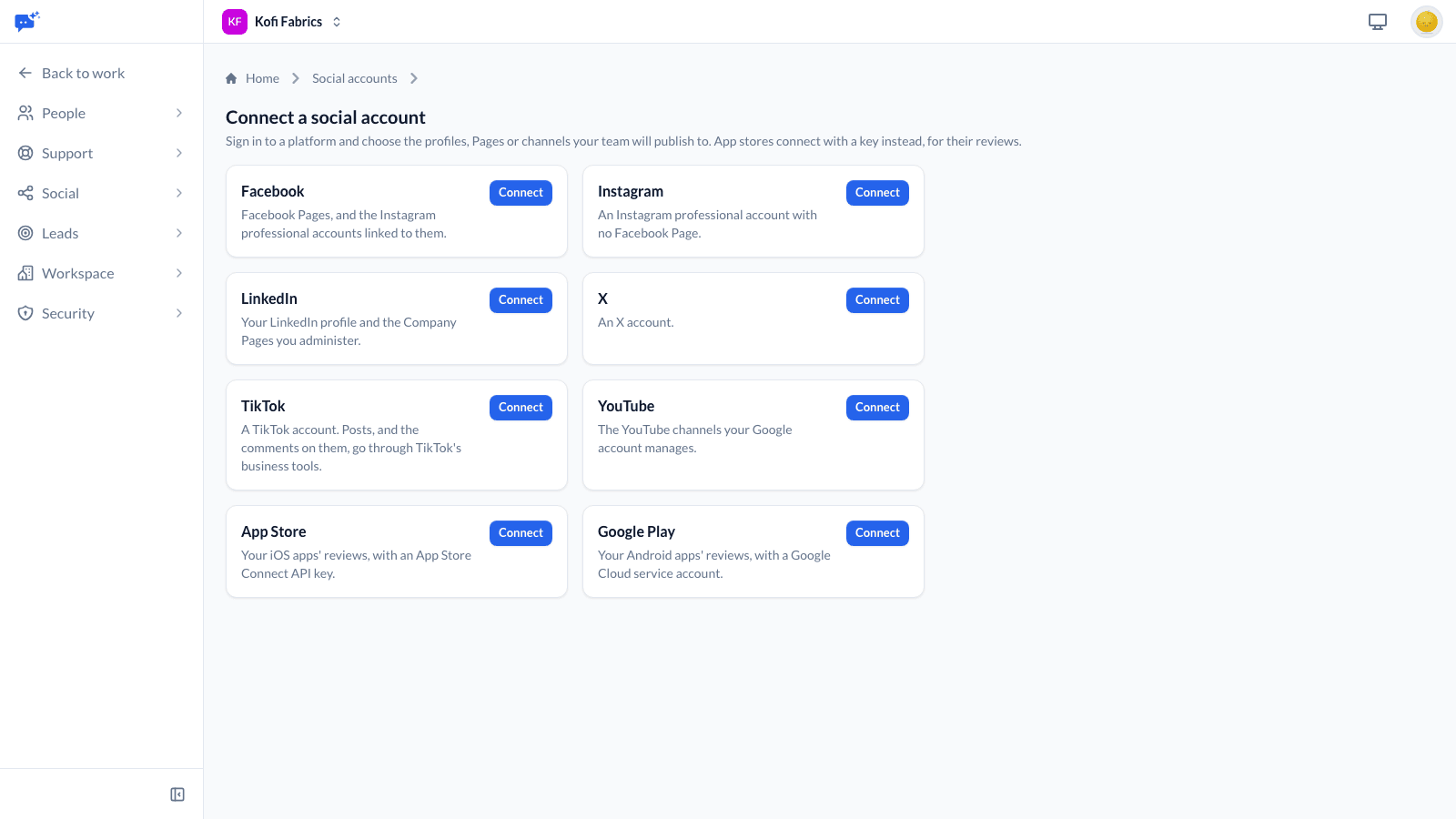
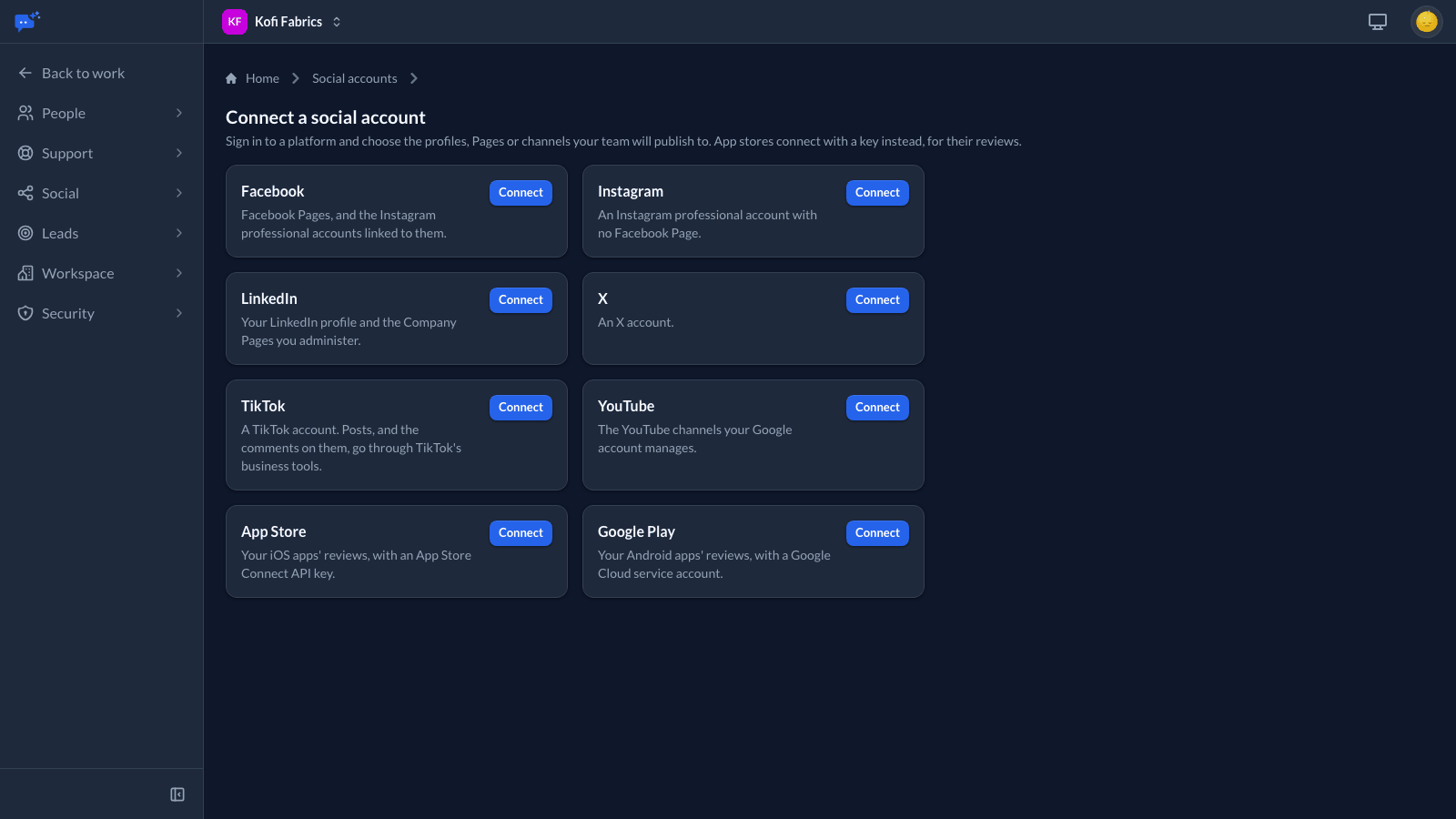
- Open Settings → Social → Social accounts and choose Connect.
- Pick the platform. You are taken to the platform to sign in and approve access.
- Choose the Pages, channels or accounts to share, if the platform asks.
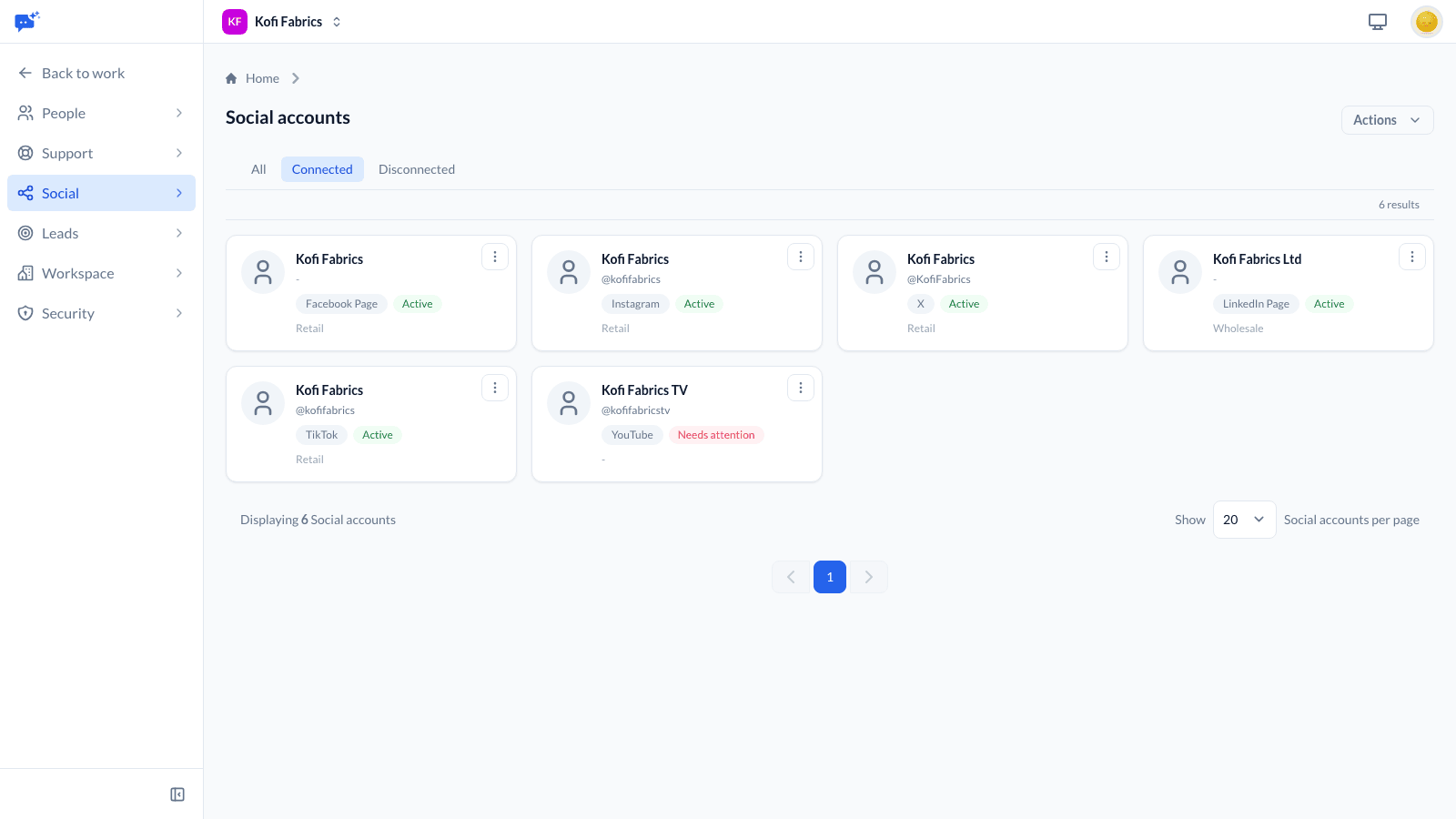
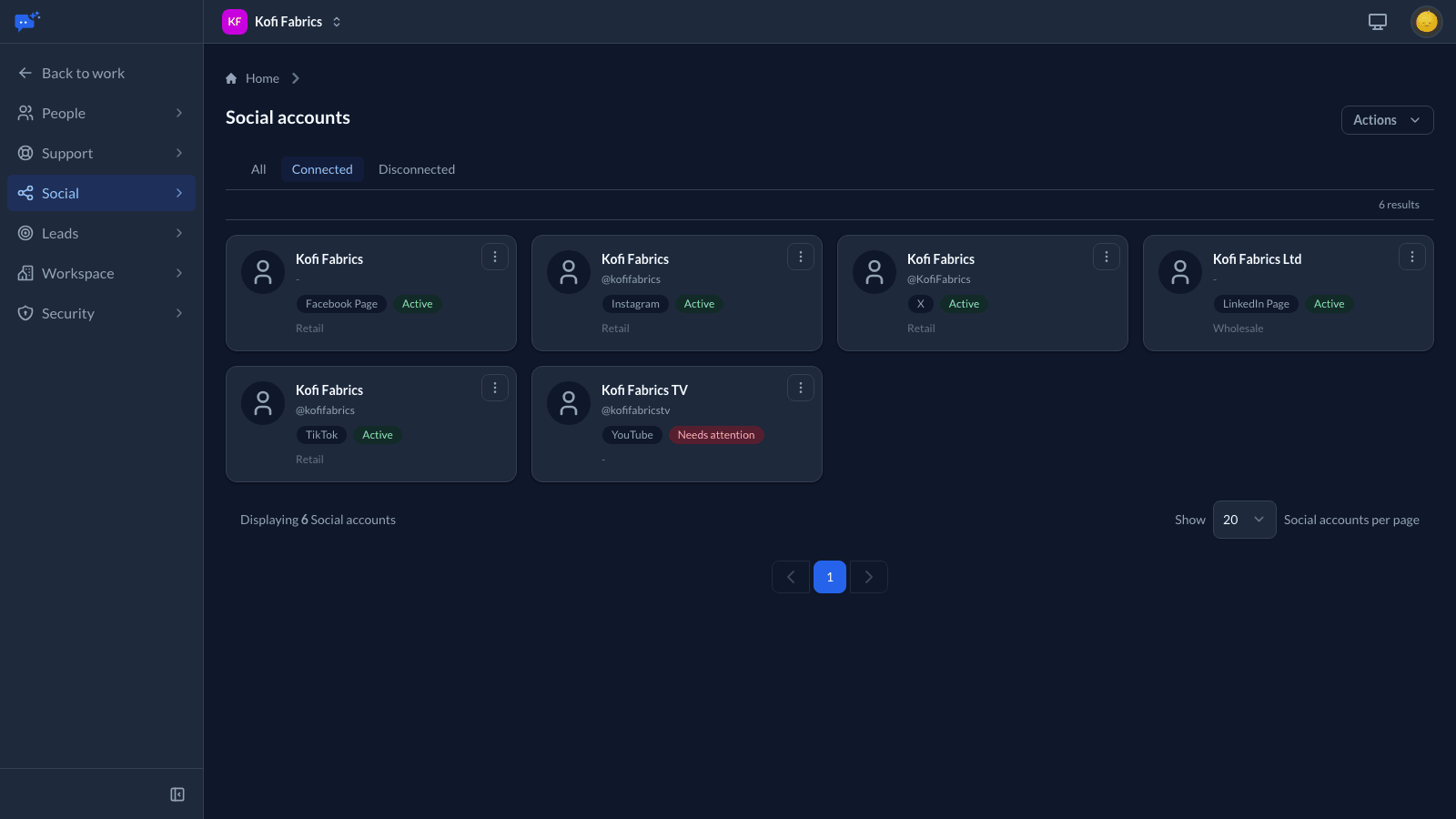
- You come back to the account list with each new account shown as active.
A Facebook Page or Instagram account that already answers messages through one of your chatbots is the same account in Social, with one connection shared by both. Connecting it for Social does not disturb the bot. If the bot was connected with permission to answer messages only, Social asks you to sign in to the account again before it can publish or listen. Connect an Instagram account in Social the same way your bot connected it: through Facebook if the bot reaches it through its Page, and through Instagram if the bot connected to it directly. Social tells you if you pick the other one.
Connected accounts stay signed in on their own. If a platform stops accepting the connection, for example because a password changed or access was removed, the account shows Needs attention and everyone who gets connection alerts is emailed. Connect it again to fix it.
What each platform connects
- Facebook: The Pages you manage, together with any Instagram business accounts linked to them. Groups and personal profiles cannot be connected.
- Instagram: An Instagram professional account that is not linked to a Facebook Page. If it is linked to a Page, connect through Facebook instead.
- LinkedIn: Your own profile and the Company Pages you administer, for publishing only.
- X: The X account you sign in with.
- TikTok: The TikTok account you sign in with.
- YouTube: Every channel the Google account manages.
- App Store: The apps your App Store Connect team key can see, for reading and answering reviews only. See App Store and Google Play.
- Google Play: The apps you name, using a service account key, for reading and answering reviews only.
Platform approval
Some platforms limit what a newly approved app can do. LinkedIn needs to approve our app before LinkedIn profiles and Company Pages can connect.
App Store and Google Play
Store apps connect with a key you create in your own store account, not by signing in. Choose App Store or Google Play on the Connect page, upload the key, and Social checks it. You then pick which apps to connect. Each app counts as one connected account toward the limit on your plan. Social reads and answers the reviews of these apps; it does not publish to them.
App Store
- In App Store Connect, open Users and Access and then Integrations, and create a Team Key with access that can read and respond to customer reviews.
- Download the private key file (it ends in .p8). Apple lets you download it once.
- Copy the Key ID and the Issuer ID shown on the same page.
- In Social, upload the .p8 file and enter both IDs. Then pick the apps to connect.
Google Play
- In Google Cloud, create a service account and download a JSON key for it.
- In Play Console, open Users and permissions and invite the service account's email address with the Reply to reviews permission, for each app you want to connect.
- In Social, upload the JSON key and list the apps by package name, one per line. Package names are shown in Play Console.
- Social checks each package and tells you about any the service account cannot read. Pick the apps to connect.
The key is checked when you upload it, and it is kept only for the apps you connect. If a store later stops accepting the key, for example because it was revoked or lost the access it needs, the account shows Needs attention and everyone who gets connection alerts is emailed. New reviews stop arriving, and replies cannot be sent, until you connect the app again with a working key.
Google Play only offers reviews from the last week. If a Google Play connection is broken or disconnected for more than a week, the reviews written in that gap are missed. See Listening for how reviews arrive.
Teams and departments
If different departments run different accounts, an owner, manager or admin can assign each account to one or more teams that work on Social. Open the account and choose its teams. Only team members with a marketing seat work an account's posts.
- An account with teams is used only by marketing agents on those teams.
- An account with no teams is used by every marketing agent.
- Owners, managers and admins use every account, and only they open the accounts list.
The same rule decides which posts, mentions and alerts each person sees.
Approval steps
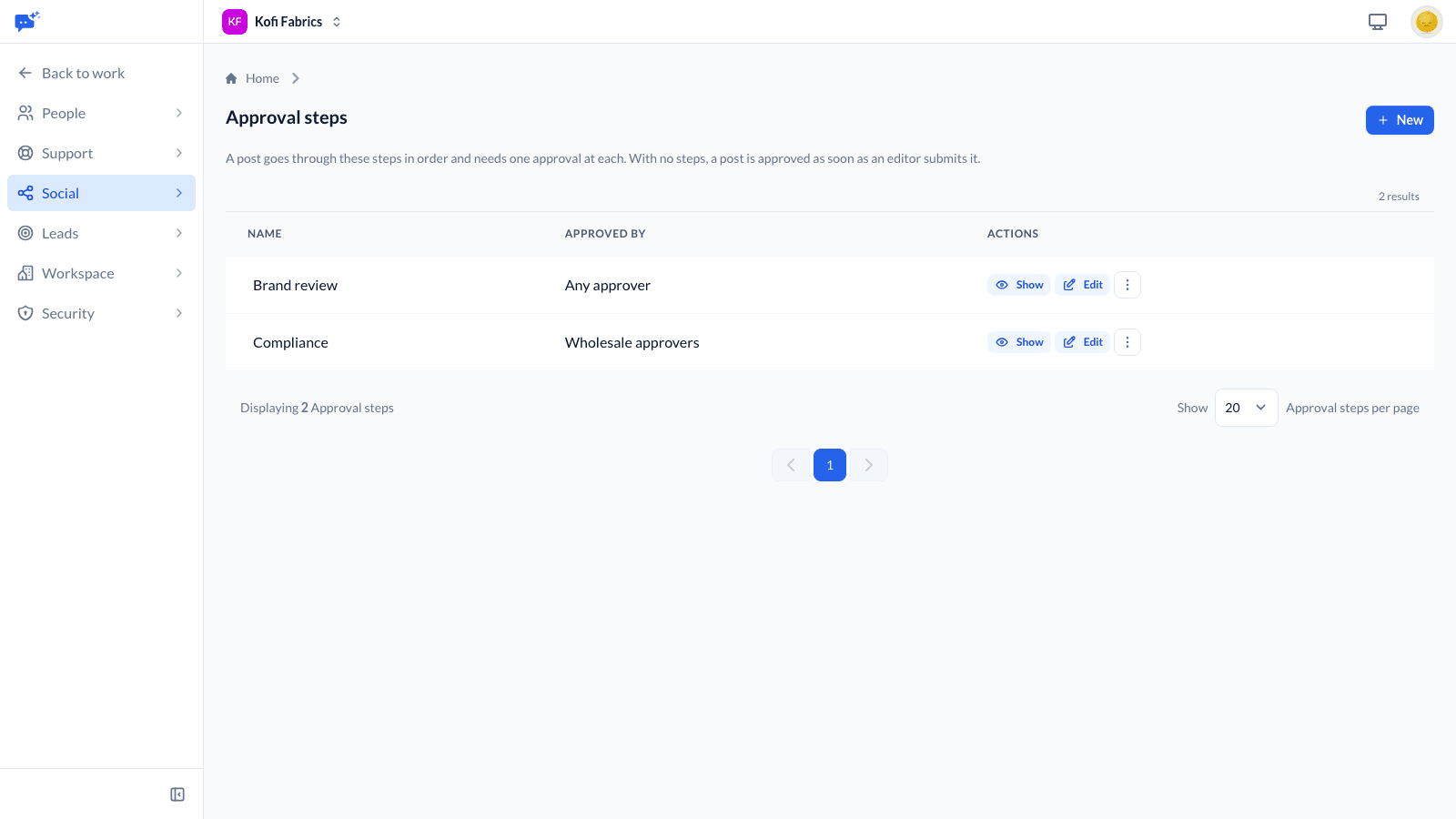
Approval steps decide who signs off a post before it can be scheduled. Owners, managers and admins set them up under Settings → Social → Approval steps and drag them into order.
- A step tied to a team is answered by an approver or publisher on that team.
- A step with no team is answered by any approver or publisher.
- Approvers and publishers sign off posts someone else wrote, never one they wrote, edited or submitted.
- Owners, managers and admins can answer any step.
- When a post reaches a step, the approvers and publishers who can answer it get an email. Owners, managers and admins get it only when no approver or publisher can answer it.
- With no steps, a submitted post is approved straight away.
See Publishing and scheduling for how a post moves through the steps.
Listening, disconnecting and reconnecting
While an account is listening, Social collects its comments and mentions. An owner, manager or admin can choose Stop listening on the account to stop collecting them; publishing carries on, and everything already collected is kept. Start listening turns it back on. An account connected with permission to answer messages only asks you to sign in to it again first. An App Store or Google Play app is there only for its reviews, so it always listens; disconnect it to stop collecting them.
Disconnecting is done on the account's connection, by the workspace owner or a manager, under Settings → Workspace → Connected accounts. Disconnecting stops everything that uses the account at once: publishing, listening, and any chatbot answering on it. Posts already published keep their history, and the account shows Disconnected. A post still waiting to go to it fails for that account, and its author and the publishers are told. Everyone who gets connection alerts is emailed. If the platform cannot be reached, nothing is changed and you can try again.
The comments and mentions collected from the account are kept for your records unless you choose Also delete the comments and mentions collected from it when disconnecting. Deleting them also deletes the replies and history recorded against them, and cannot be undone. X, YouTube and TikTok are the exception: each requires that what we collected from an account is deleted once we lose access to it, so disconnecting an X account, a YouTube channel or a TikTok account always deletes what it collected. Disconnecting an App Store or Google Play app always deletes its reviews too.
Posts collected from X are also checked against X regularly. A post deleted on X, or whose author's account became protected or suspended, is deleted from Social too.
Connecting the same account again brings it back as it was, listening if it was listening. Add it to any waiting posts that should still go to it.