On this page
Writing a post
- Open Social → Posts and choose New.
- Write the text once. Give the post an internal title if you like; it is never published. Pick a campaign too if the post belongs to one.
- Choose the accounts it goes to.
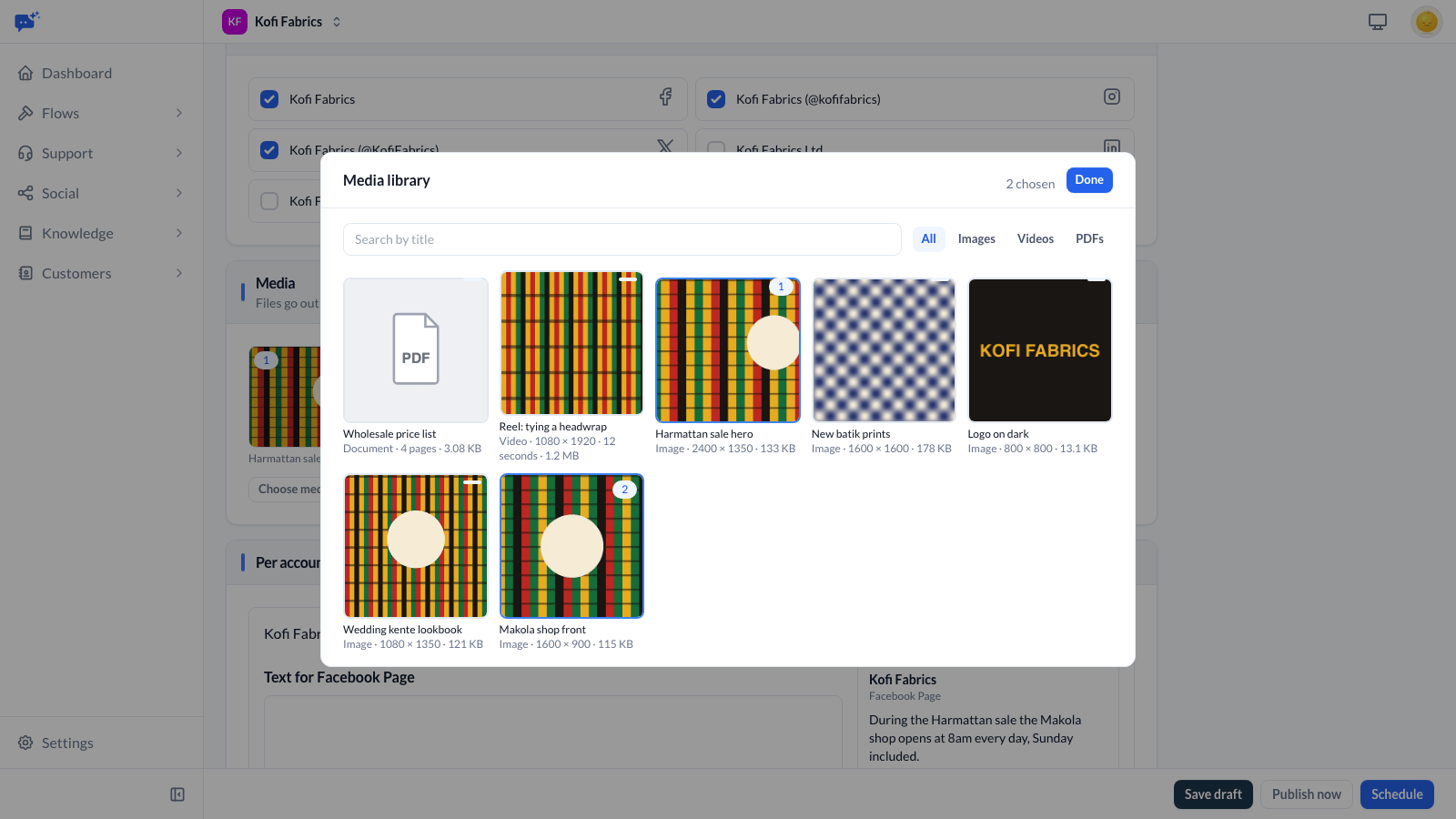
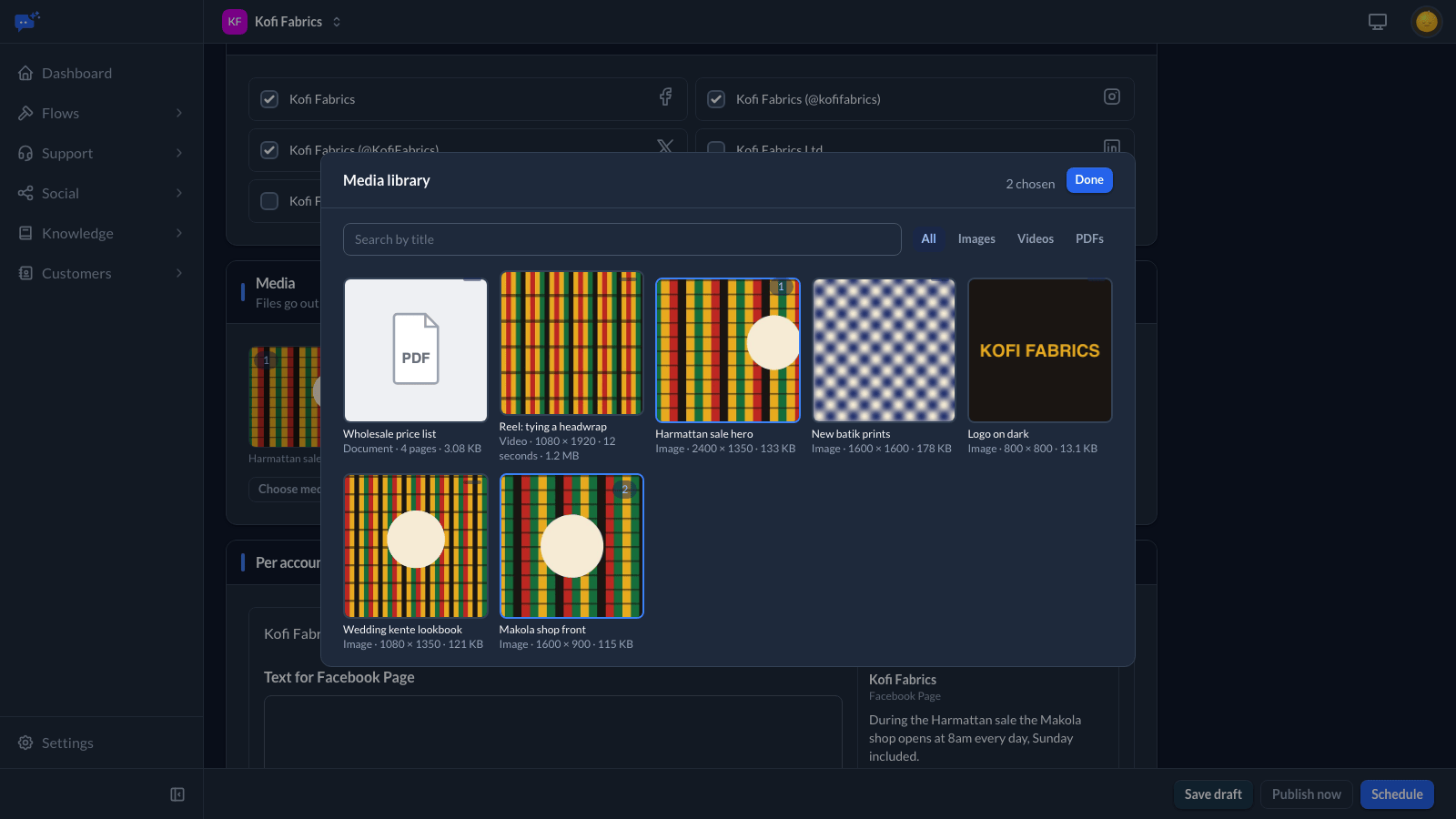
- Under Media, choose Choose media to open the media library. Search by title or show only images, videos or PDFs, and click each file you want; the number on a file is its place in the post. Choose Done when you have them all. Back in the post, drag the files into the order they should go out in, or remove one with its cross.
- Each account gets its own section. Change the text for that account, or leave it to use the main text, and set the platform's options.
- Save it as a draft, or submit it for approval. In a workspace with no approval steps, publishers schedule or publish it from here instead.
While you write, each account shows a character counter, any problems with the text or media, and a simple preview. Suggested posting times for each platform are shown in your workspace's time zone. They are a starting point based on general engagement patterns; your own audience is the better guide.
Creators can write drafts and edit their own. Editors can edit anyone's post. A post that is waiting for approval, approved or scheduled goes back to draft when anything about it changes, and needs approving again.
Options for each platform
- Facebook: A post, a reel or a story.
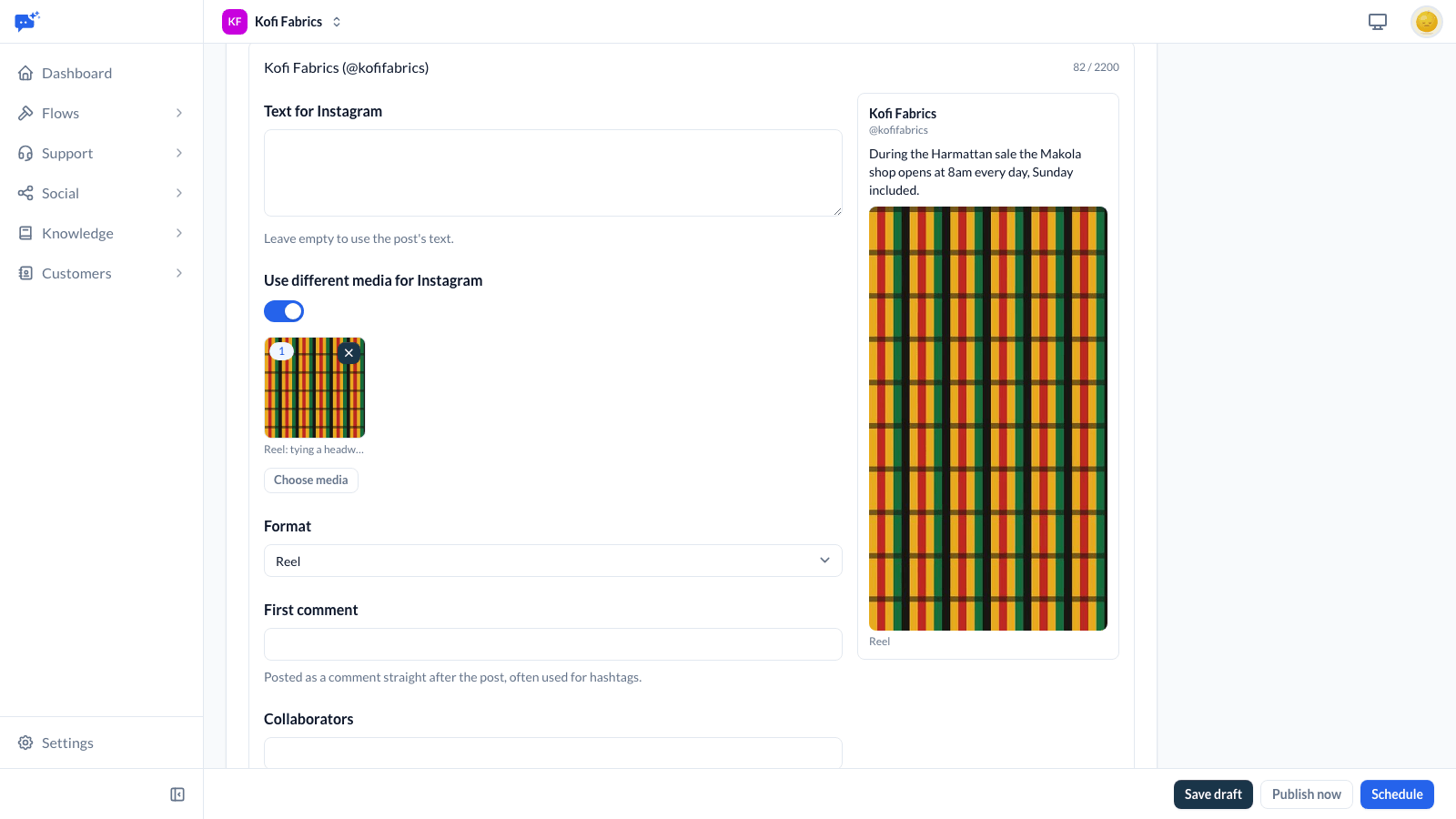
- Instagram: A feed post, a reel or a story. Add a first comment, which is posted straight after the post; up to three collaborators; and people to tag.
- X: Add further posts to make a thread. Add a poll with two to four choices of up to 25 characters each, lasting 5 minutes, 1 hour, 1 day, 3 days or 7 days. A post with a poll carries no media. In a thread, the poll goes on the first post.
- LinkedIn: A title for a PDF, which is shown as a swipeable document.
- YouTube: Title, description, visibility, whether it is a Short, a playlist and a custom thumbnail, picked from the images in the library.
- TikTok: Who can view a photo post, switches to turn off comments, duets and stitches, and the labels for promoting your own brand or a paid partnership. TikTok shows videos posted from other apps to everyone. Only the options TikTok allows for that account can be chosen.
X charges for what we post and read on your behalf. Past the X allowance your Social size includes, this is billed as X usage at cost plus a 30% processing fee, and you can see it under Settings → Workspace → Usage & Billing. If the workspace reaches its X budget, posting to X pauses.
Different media for one account
Every account sends the post's media unless you tell it otherwise. In an account's section, switch on Use different media to give that account its own files, chosen and ordered the same way. Use it to send a vertical video to Instagram and TikTok while LinkedIn gets a PDF, or to leave one account text-only by switching it on and choosing nothing.
The checks and preview for that account follow its own files, and the post page lists them under the account. Switching it off again returns the account to the post's media.
Campaigns
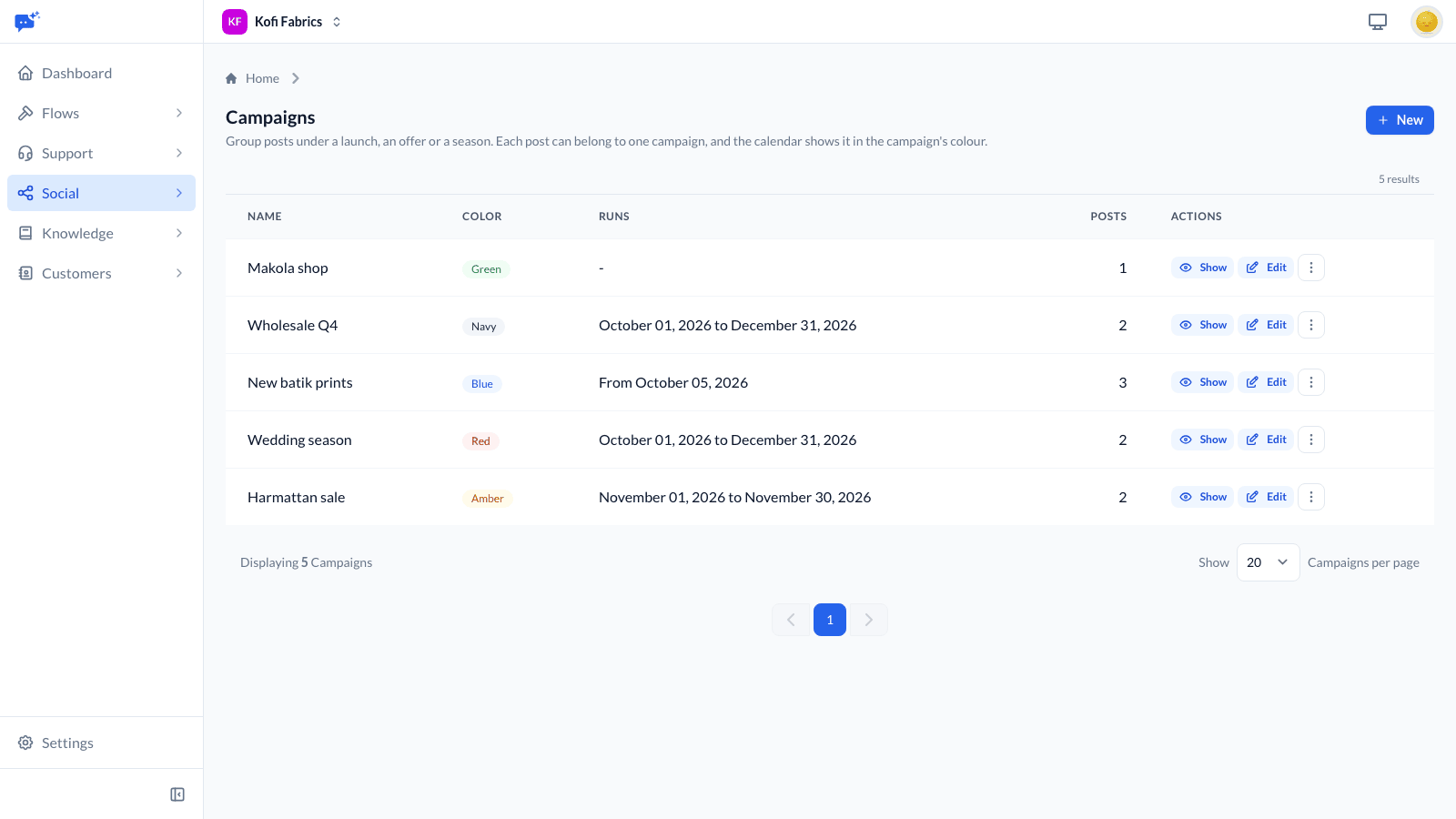
A campaign groups the posts for a launch, an offer or a season. Editors, approvers and publishers set campaigns up under Social → Campaigns, each with a name, a colour and, if you like, start and end dates and a description for the team. Only owners, managers and admins can remove one; its posts stay, without a campaign.
- When writing a post, pick its campaign from the list. Campaigns that have ended drop out of the list, but a post keeps the one it already has.
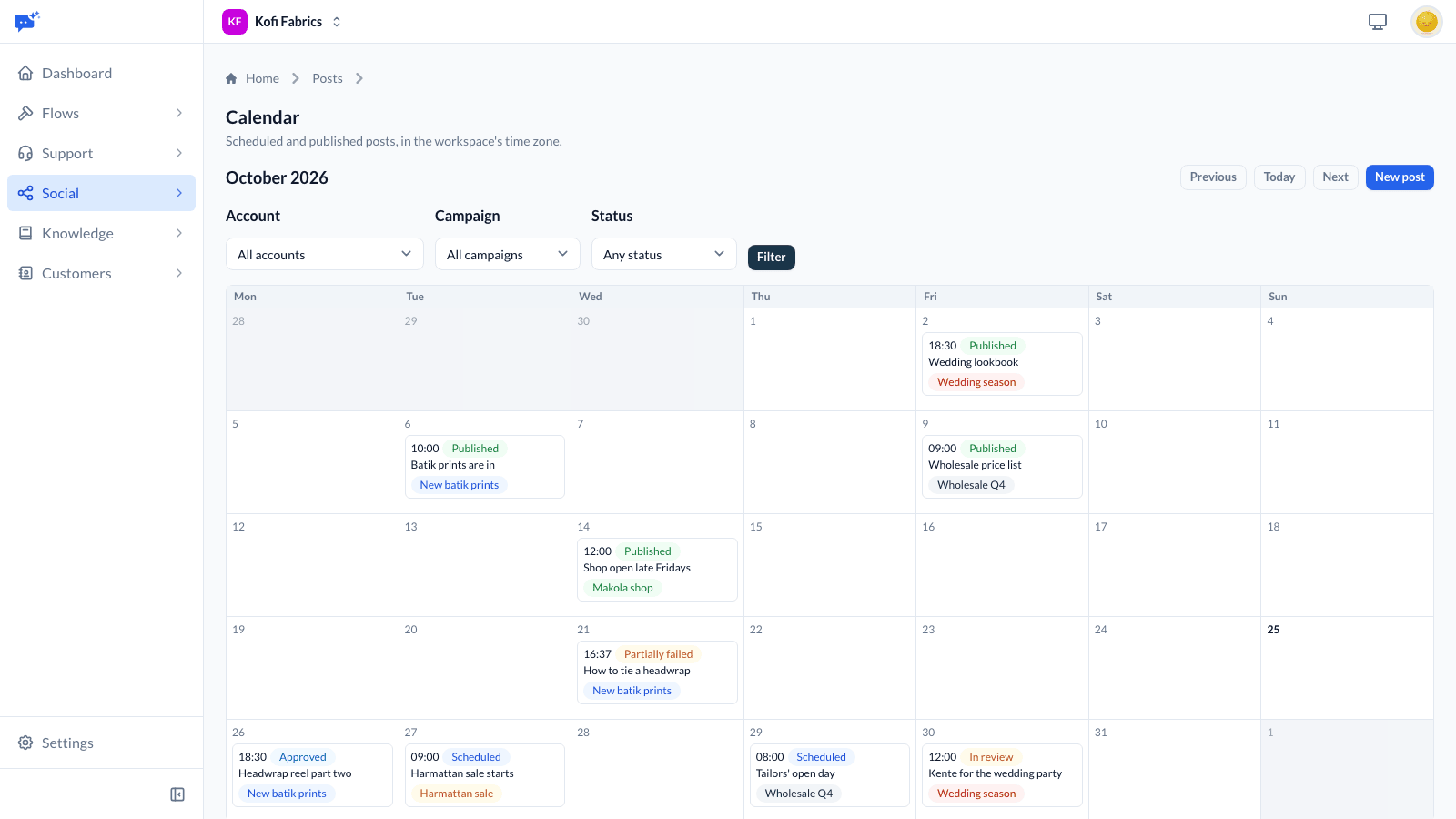
- The calendar marks each post with its campaign in the campaign's colour, and can show one campaign on its own.
- The post list can be filtered by campaign, and a campaign's page lists all of its posts and where each one stands.
Approval
Editors and above submit a post for approval with Submit for approval. It then goes through your approval steps in order. At each step, an approver who can answer it, other than anyone who wrote, edited or submitted the post, opens the post and chooses:
- Approve, which passes it to the next step, or marks it approved after the last one;
- Request changes, with a comment, which sends it back to draft.
A post sent back and submitted again starts from the first step, and earlier approvals no longer count. With no approval steps set up, a submitted post is approved straight away. Everyone who can answer a step is emailed when a post reaches it. The author is emailed when changes are requested, and the author and publishers when the post is approved. In a workspace with no publishers, the owners and admins hear about approved posts instead. Each person can turn these emails off on their Notifications page.
Checks before a post goes out
When a post is submitted, and again when it is scheduled, it is checked against each platform's rules: text length, number of hashtags, how many files and of what kind, and each file's type, size, length and shape. Every problem is listed with the account it applies to, so you can fix it before anyone approves it.
An image in a shape a format does not take is cropped around its focal point. Videos are never changed, so a video that does not fit needs a different file.
Scheduling and the calendar
Once a post is approved, a publisher can Schedule it for a date and time, or Publish now. While your workspace has approval steps, every post goes through them first, whoever wrote it. Times are in your workspace's time zone. A scheduled post goes out within a minute of its time. A publisher can Cancel post before then.
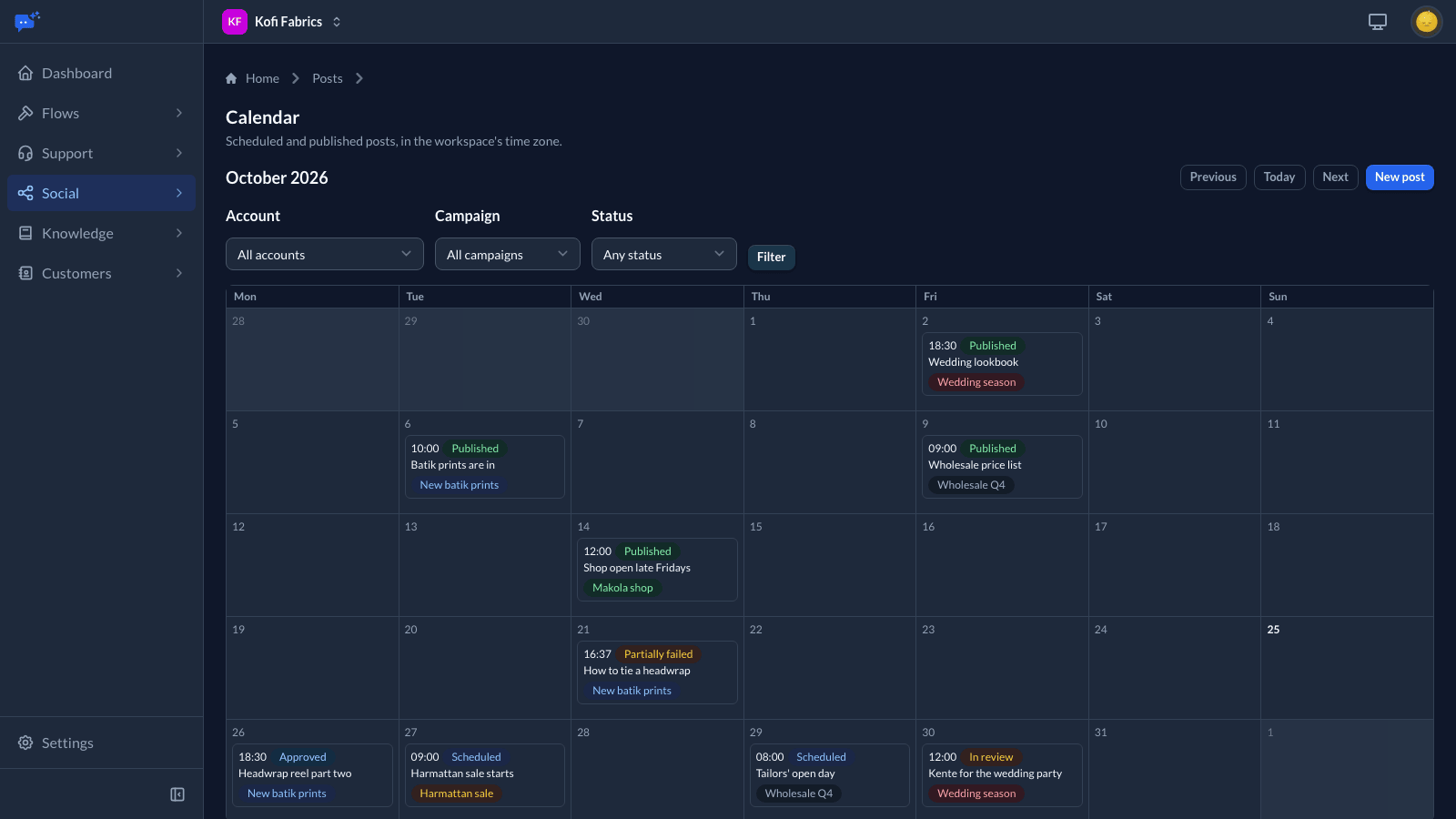
Social → Calendar shows a month of scheduled and published posts, and can be filtered by account, campaign and status. Publishers can drag a scheduled post to another day; it keeps its time of day. Posts cannot be moved into the past.
Each Social size includes a number of scheduled or published posts a month (Lite 60, Growth 300, and Scale 1,000). A post sent to three accounts counts as three.
After publishing
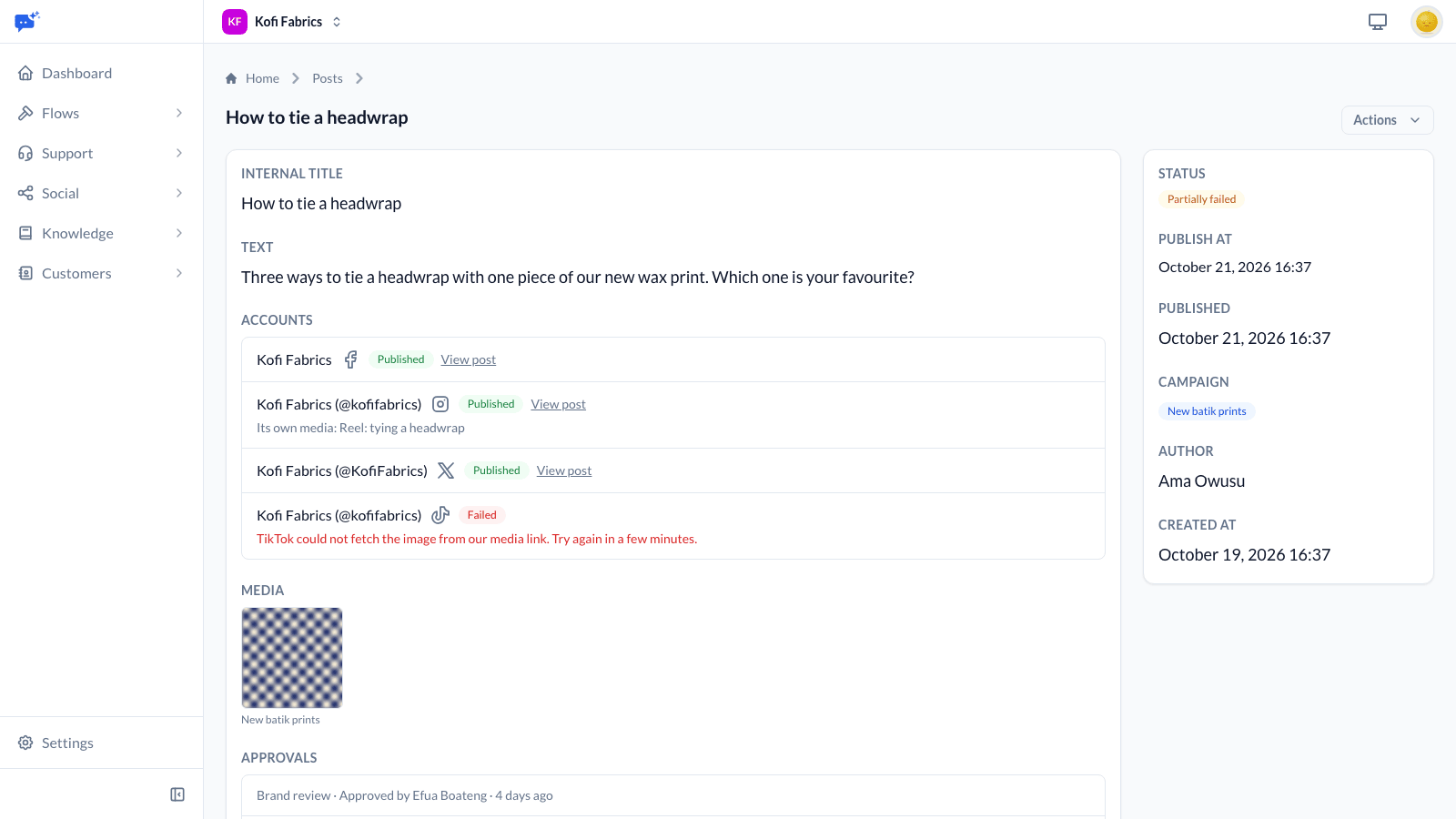
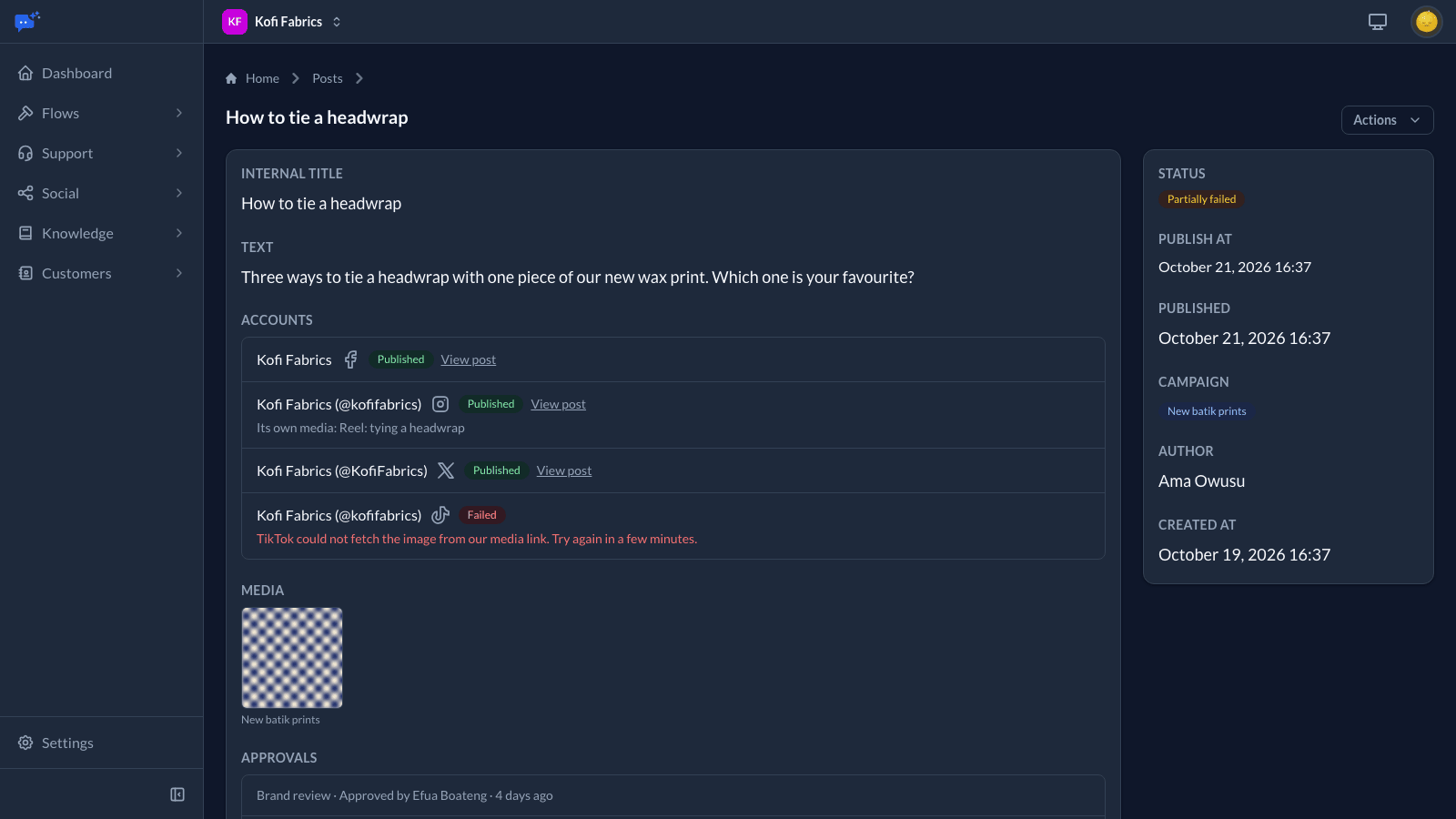
The post shows the status of each account it went to, with a link to the live post. A post that reached some accounts and not others shows as published with failures. A published post that someone deletes on X or on Facebook shows as deleted there. A video deleted on YouTube shows as deleted within a day.
If a platform is briefly unavailable, publishing is tried again automatically a few times. If an account still fails, or the platform refuses the post, the author and the workspace's publishers get an email with the reason. Fix the problem if there is one, then choose Retry failed to send it again to every account that failed. Accounts it already reached are not posted to twice.
If Social is turned off, scheduled posts wait and go out once it is back. A post that came due more than a day before then is not sent: it is marked failed, its author and publishers are told, and you can reschedule it.
Importing from a CSV
Use Posts → Import CSV to bring in many posts at once. The import form links to a sample file to start from, filled in with your own accounts and media. The file needs these columns:
| Column | Contains |
|---|---|
| text | The post's text. |
| accounts | Account names or @handles, separated by semicolons. |
| scheduled_at | When to publish, in your workspace's time zone. Optional. |
| media | Media library IDs, separated by semicolons. Each item in the media library shows its ID, such as #42. Optional. |
| campaign | The name of one of your campaigns. Optional. |
The import runs in the background, and its progress page shows when it is done. The whole file is checked first. If any row has a problem, nothing is imported and the progress page names each row and what is wrong with it.
A publisher who could sign off their own posts at every approval step, which means an owner, manager or admin, or anyone when there are no steps, has rows with a time scheduled straight away. Everyone else gets drafts that keep the intended time, ready to go through approval.
Notes and history
Anyone working on a post can Add note to it. Notes are for your team and are never published.
Each post keeps a history of everything that happened to it: who created, edited, submitted, approved or scheduled it, and when it went out or failed. Social → Activity lists this for every post you can see, together with what happened to the comments you answered, and can be exported as a CSV.
Platform limits
Some things cannot be done through the platforms' publishing tools:
- Facebook: Pages only, not Groups or personal profiles. A video goes out on its own, not alongside images.
- Instagram: no link stickers, music or product tags. Stories have no caption.
- X: a video goes out on its own, not alongside images.
- YouTube: no Premieres. A video can be set to go public at a chosen time instead.
- TikTok: videos are public; choose who sees a photo post. There is no access to TikTok's sounds library.